
How to add or edit Image Gallery Section on homepage?
How to add header?
- Login to the dashboard of your property website at manage.beswifty.com.
- Navigate to Website Pages > Homepage.
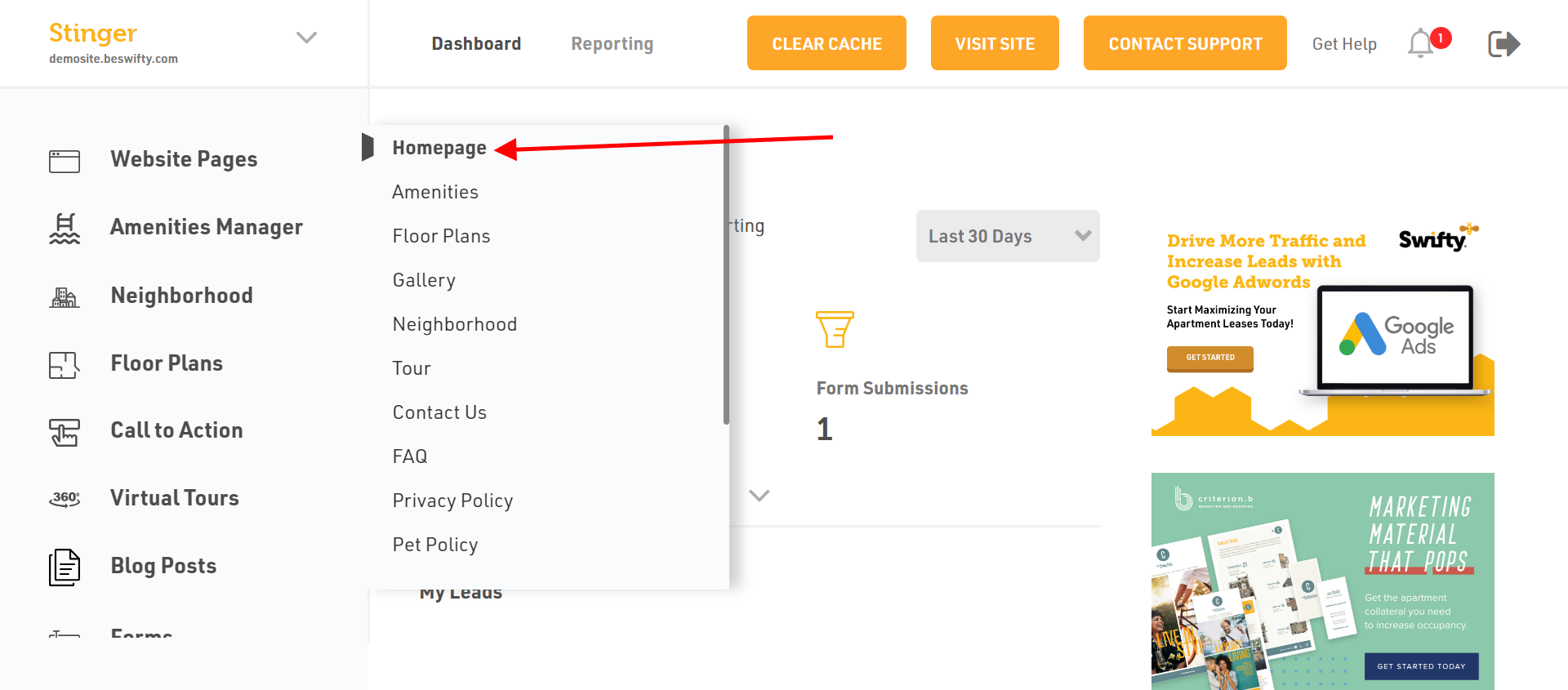
- Then in the left sidebar click on Image Gallery Section.
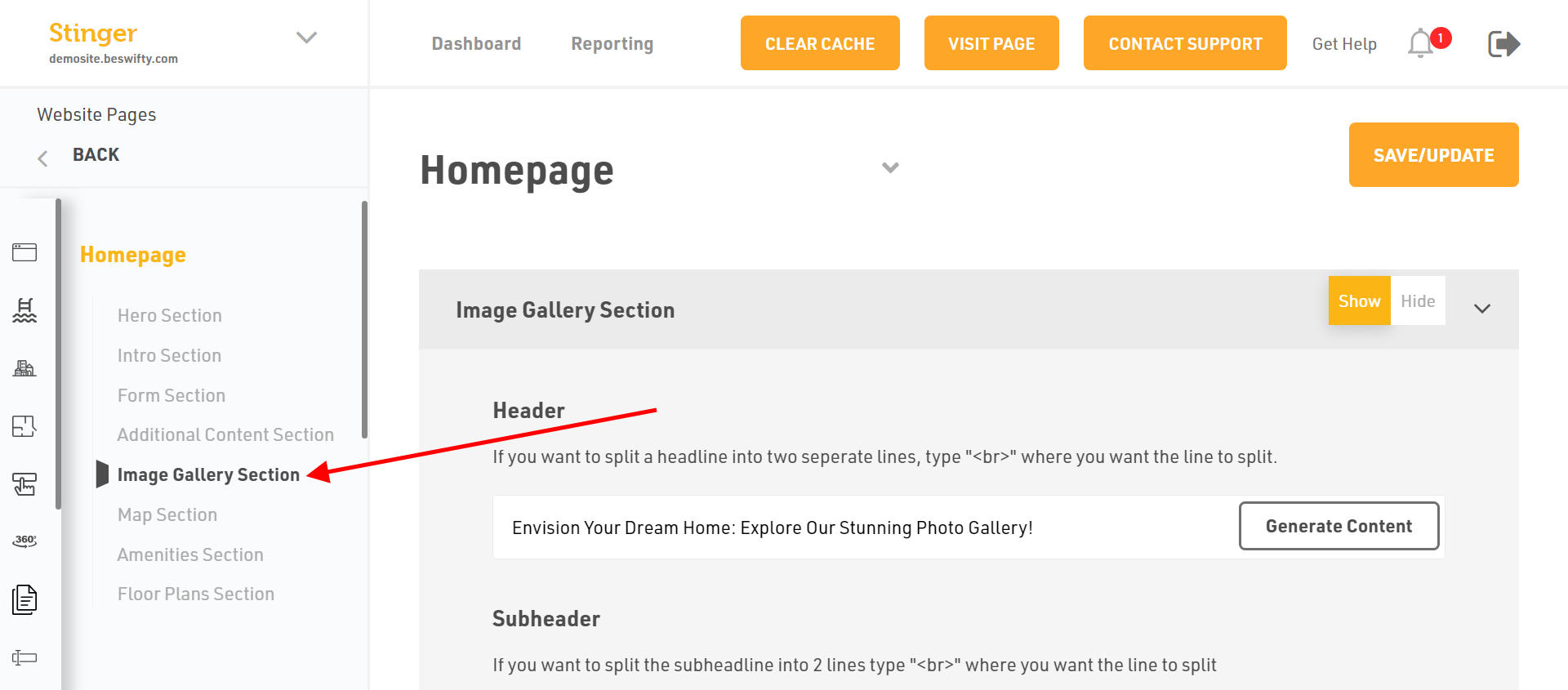
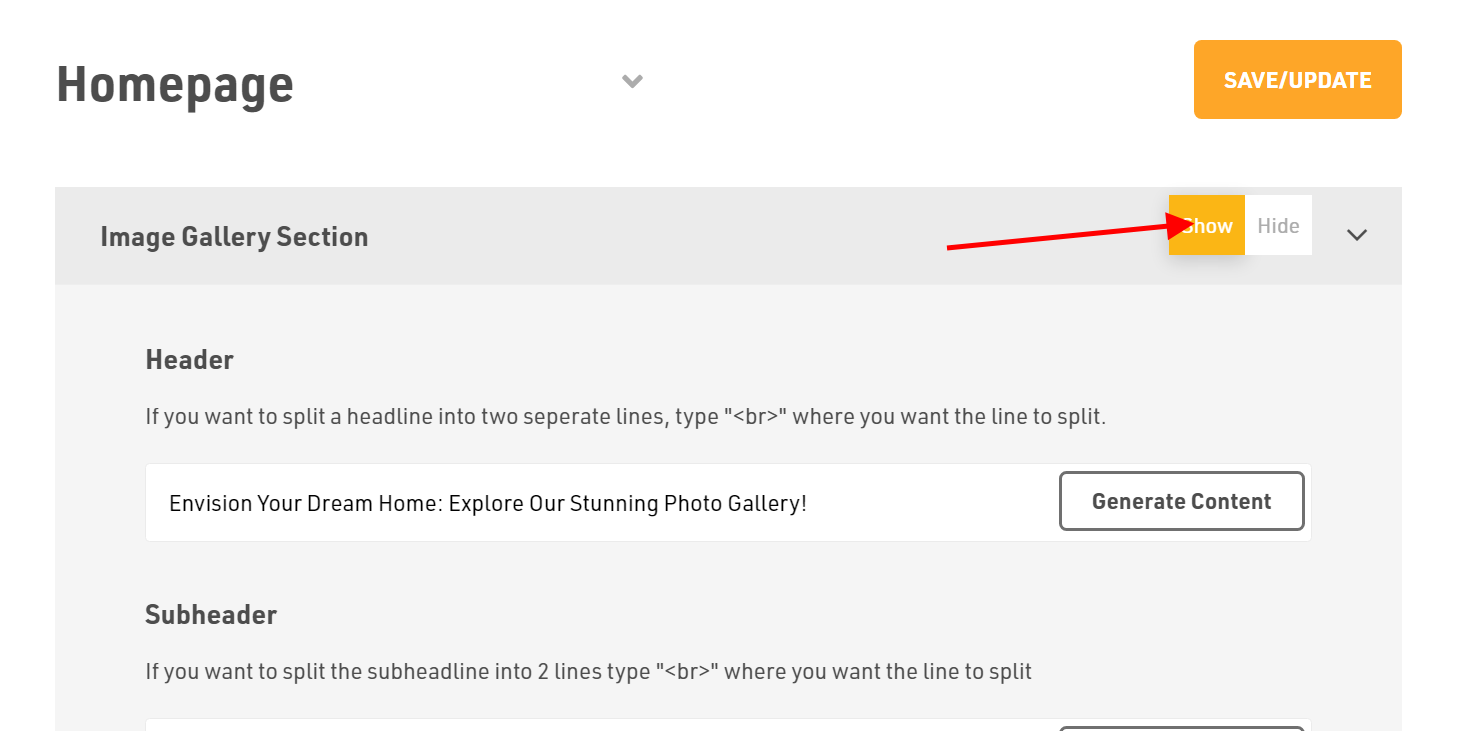
- First select on the Show option so that the section becomes visible in front-end of your website.
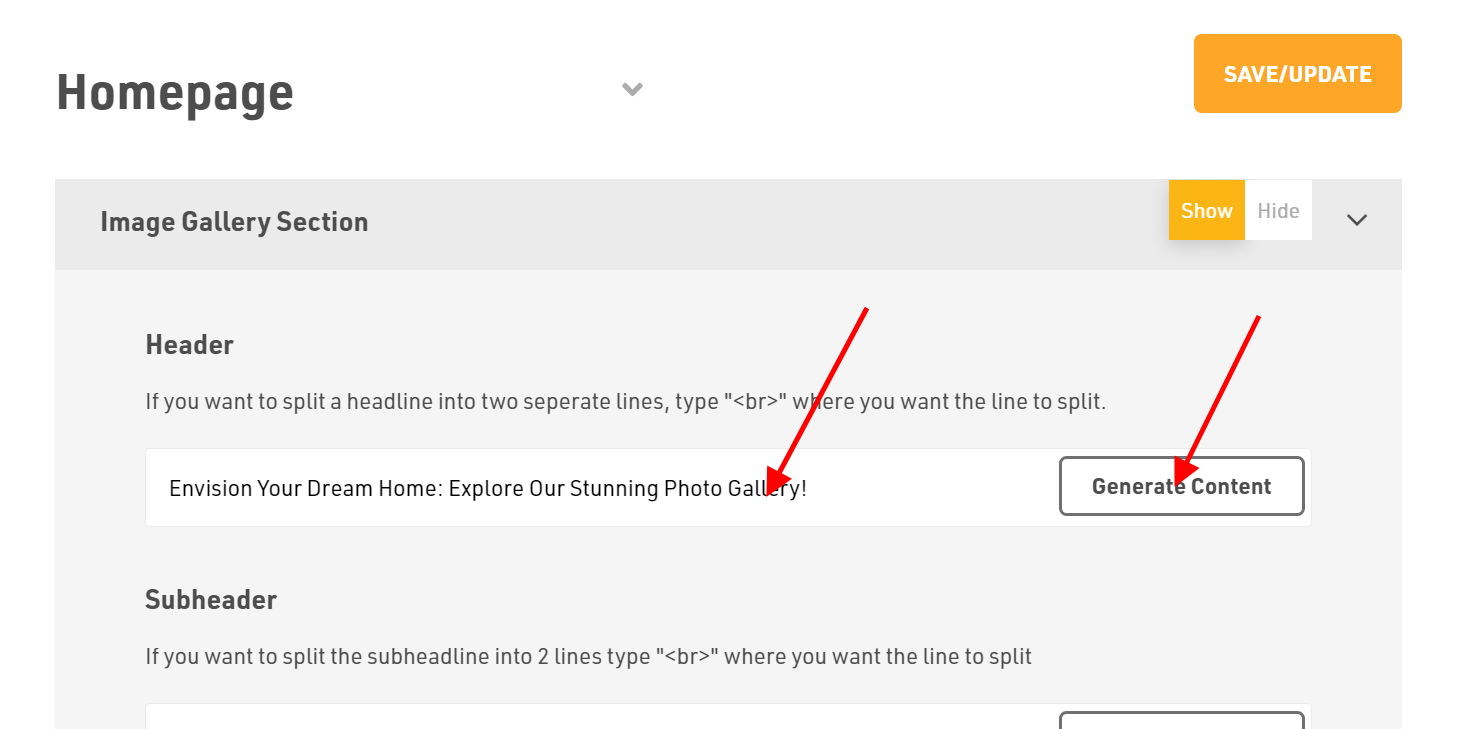
- Next comes the Header. Here, you can either click on Generate Content AI button which automatically generates the suitable header else you can write your own content.
How to add sub-header?
Website Pages > Homepage > Image Gallery Section
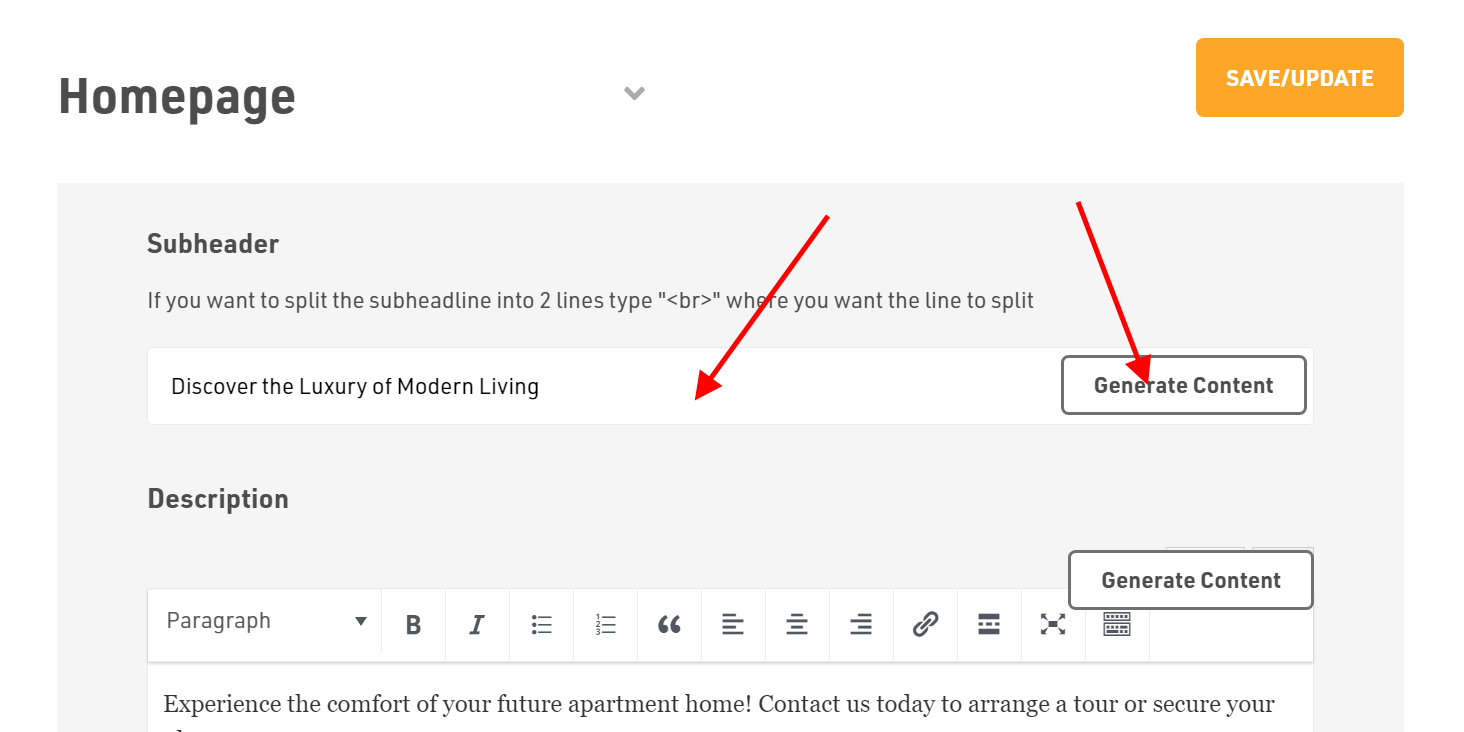
- Next is the Sub-header.
- To add a Sub-header, use our Generate Content AI option to automatically generate a relevant sub-header. You can also choose to write your own sub-header.
How to add Description?
Website Pages > Homepage > Image Gallery Section
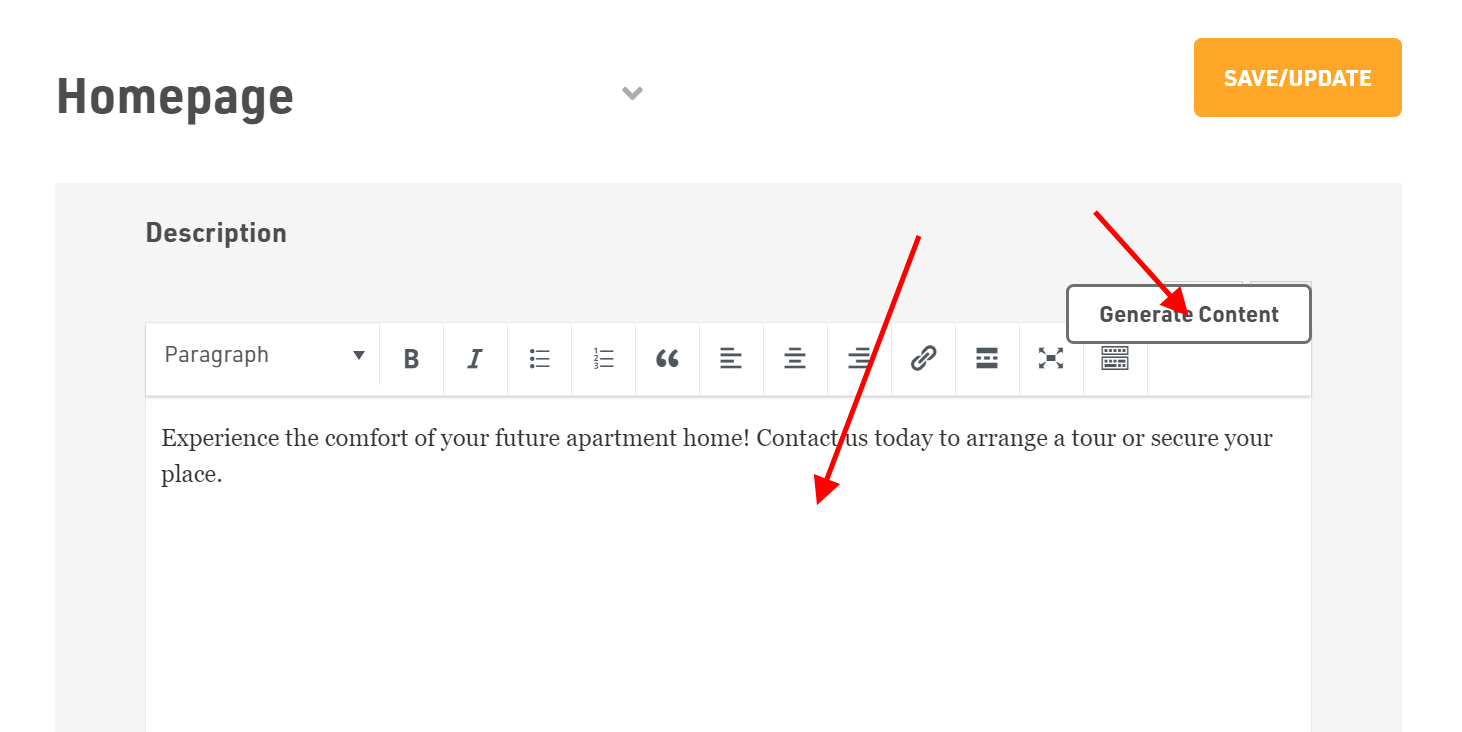
- In Description, you can type your own content or you can use our "Generate Content" AI option.
- You can edit the text as per your requirements by using the different options available.
How to add Images?
Website Pages > Homepage > Image Gallery Section
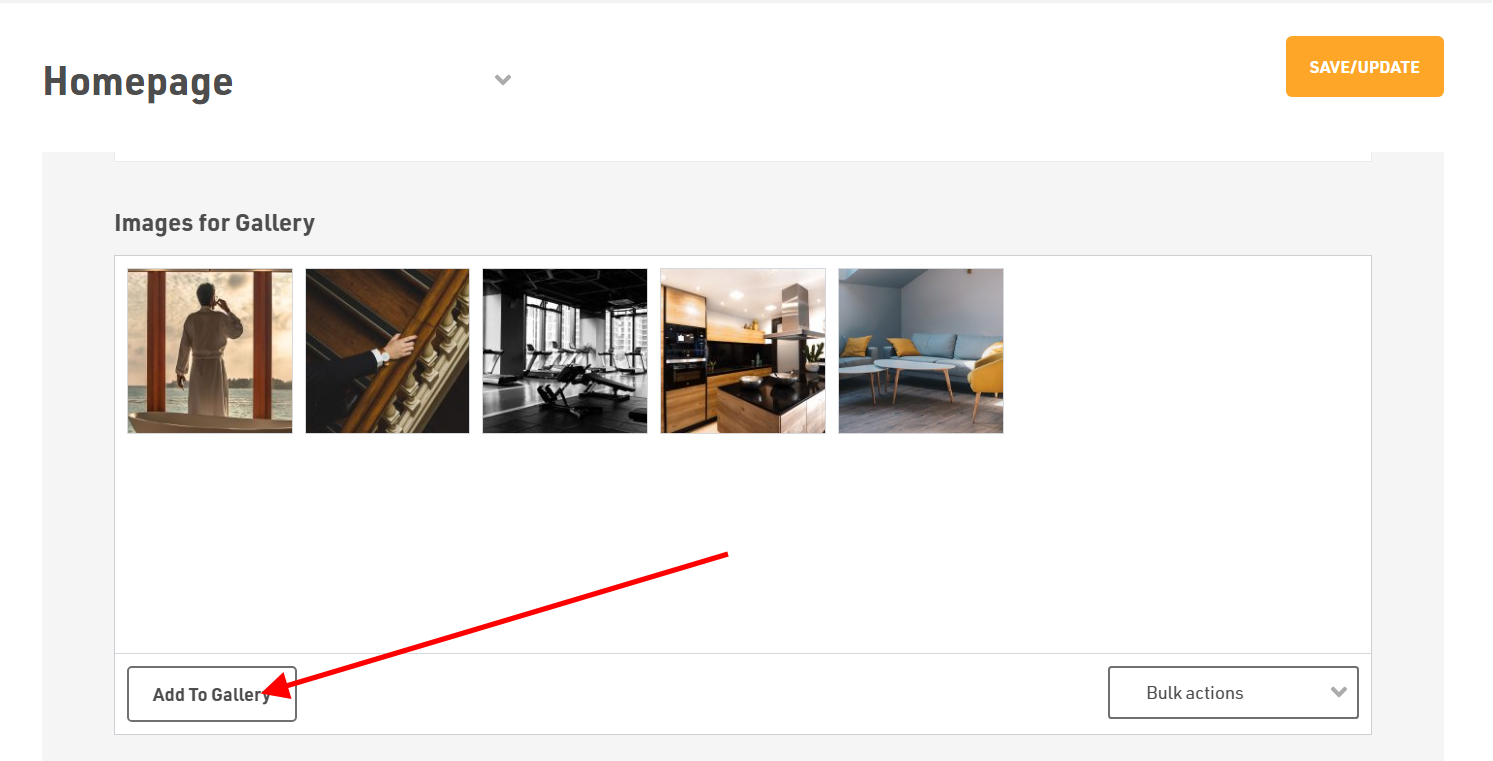
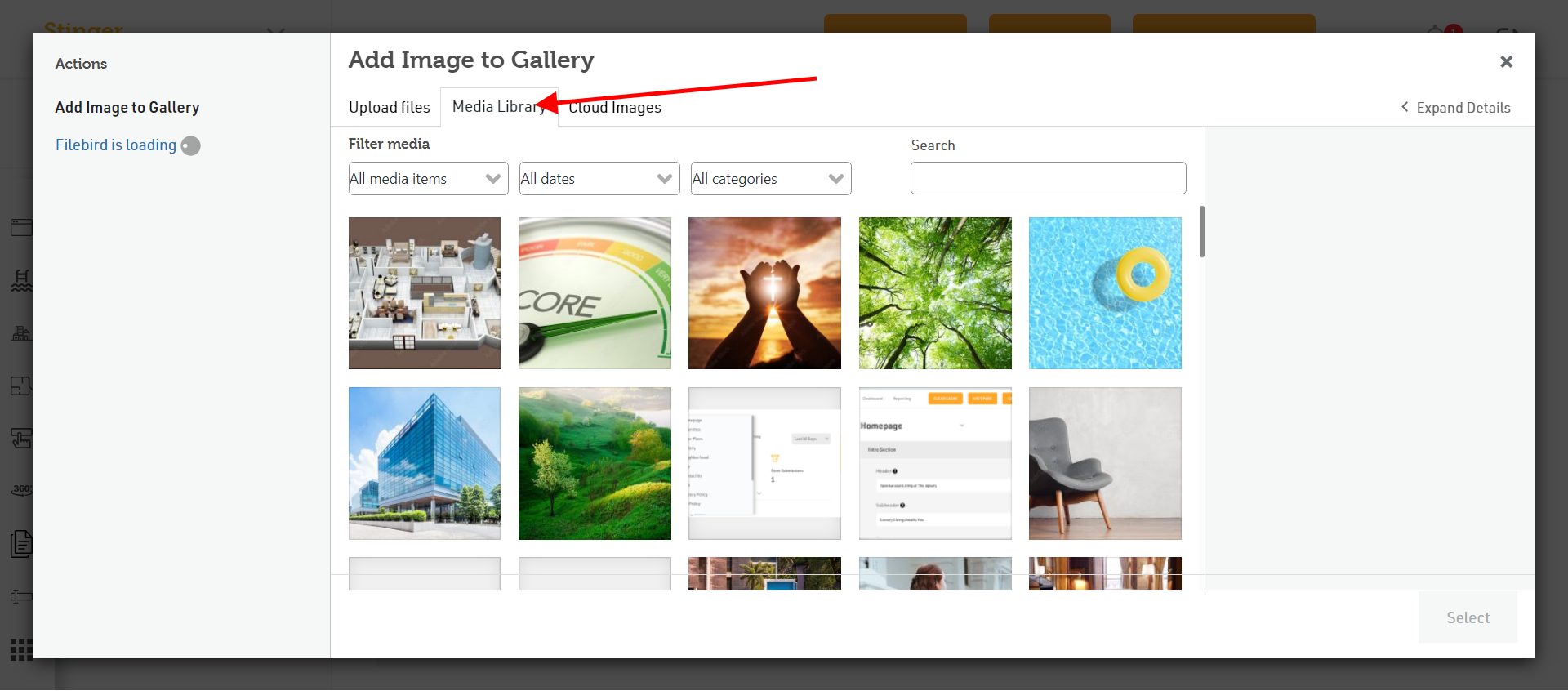
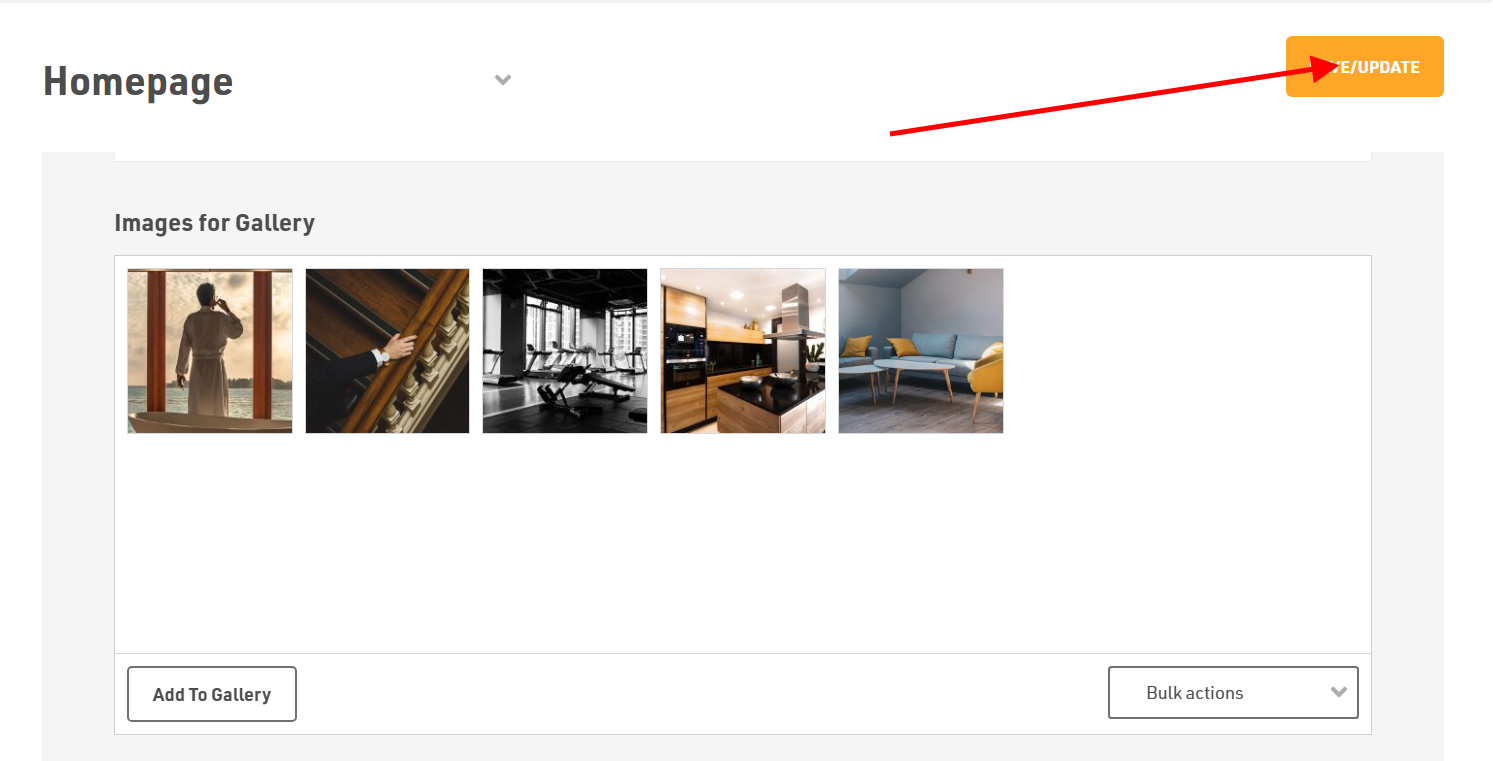
- To add Images, click on Add to Gallery.
- Next if you want to put files from your device, then click on Upload files and select relevant files from your device.
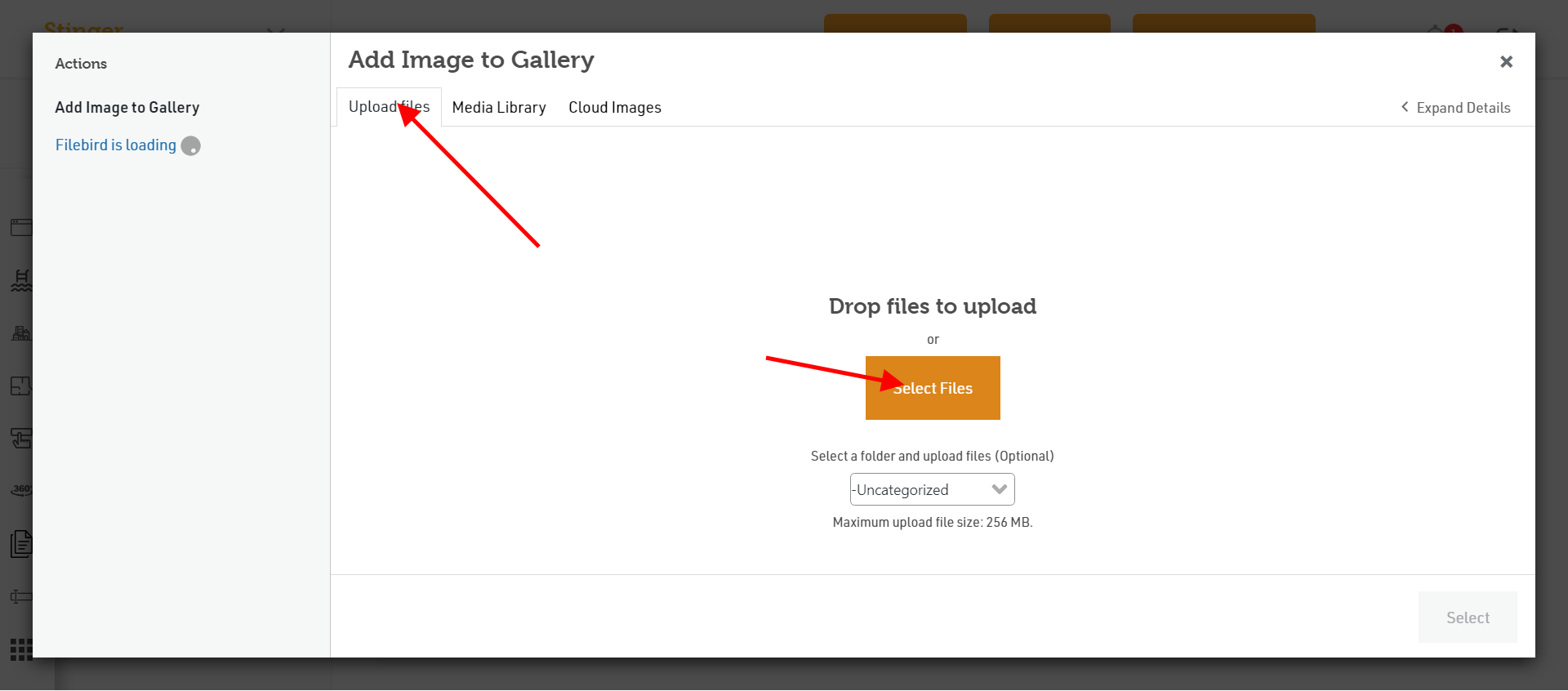
- If you have already uploaded the file before, then just select images from Media Library.
Dont forget to Save/Update
Make sure to click the Save/Update button on top right corner once finished.
Was this article helpful?
Thanks for the feedback.