
How to add Colors to your property website?
How to add Colors to your multifamily website
- Please login to the dashboard of your property website at manage.beswifty.com.
- In the left sidebar navigate to Settings > Branding.
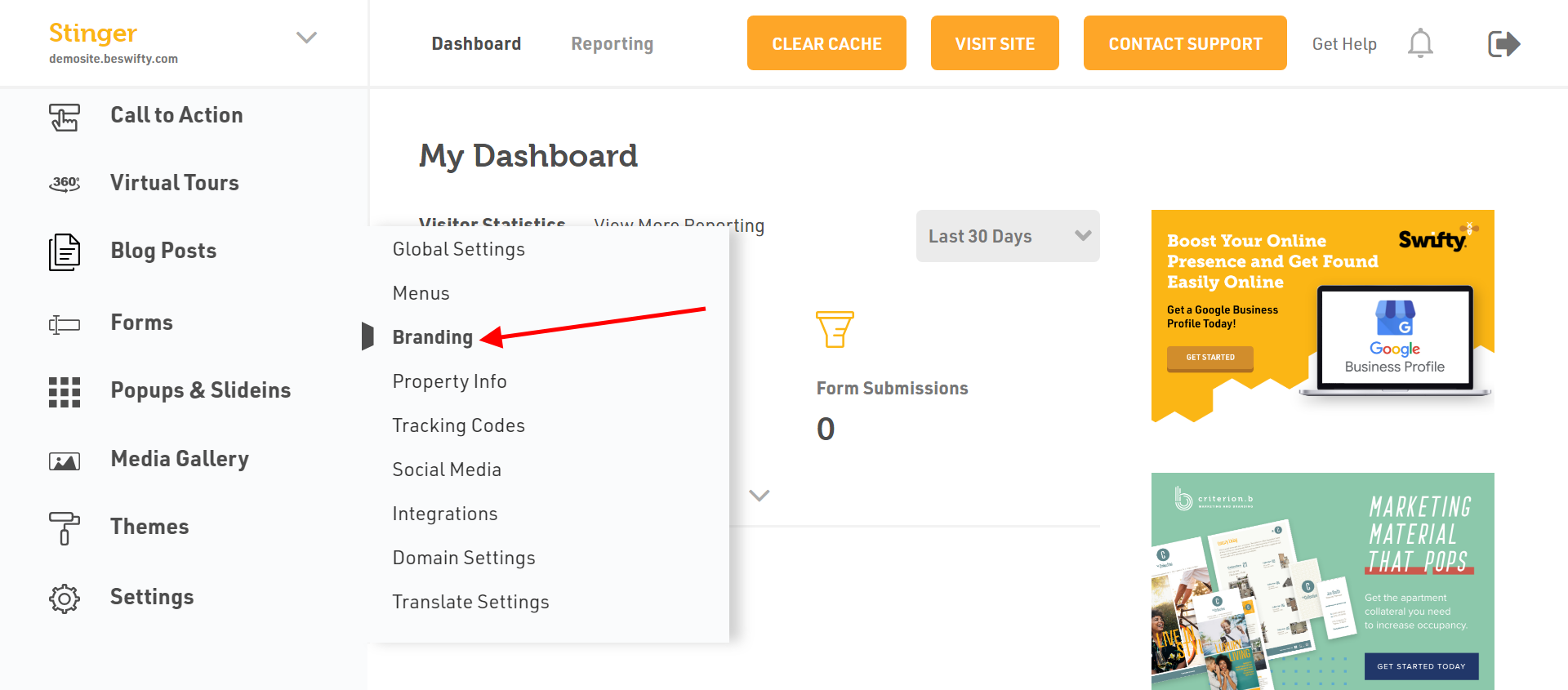
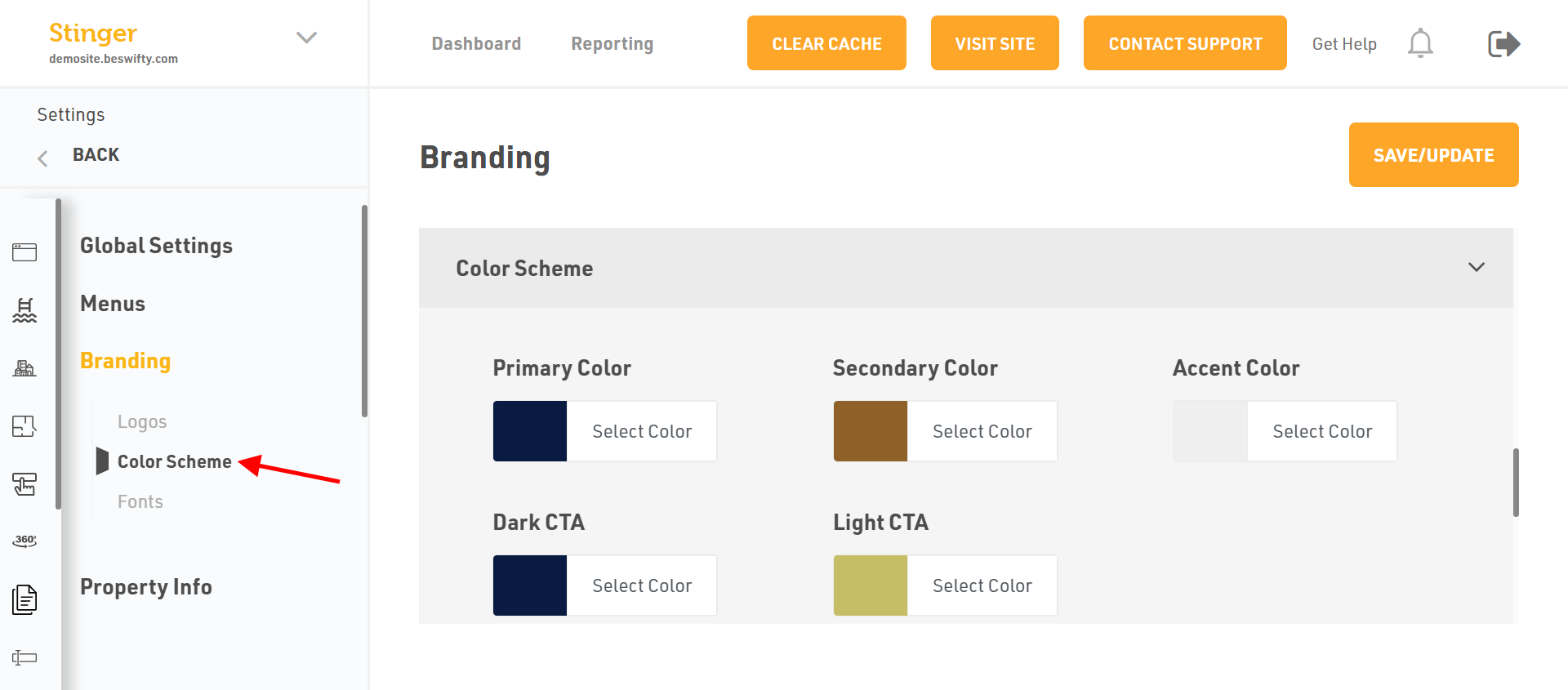
- On the Branding screen, click the Color Scheme tab. This is where you will be able to add or update your website colors.
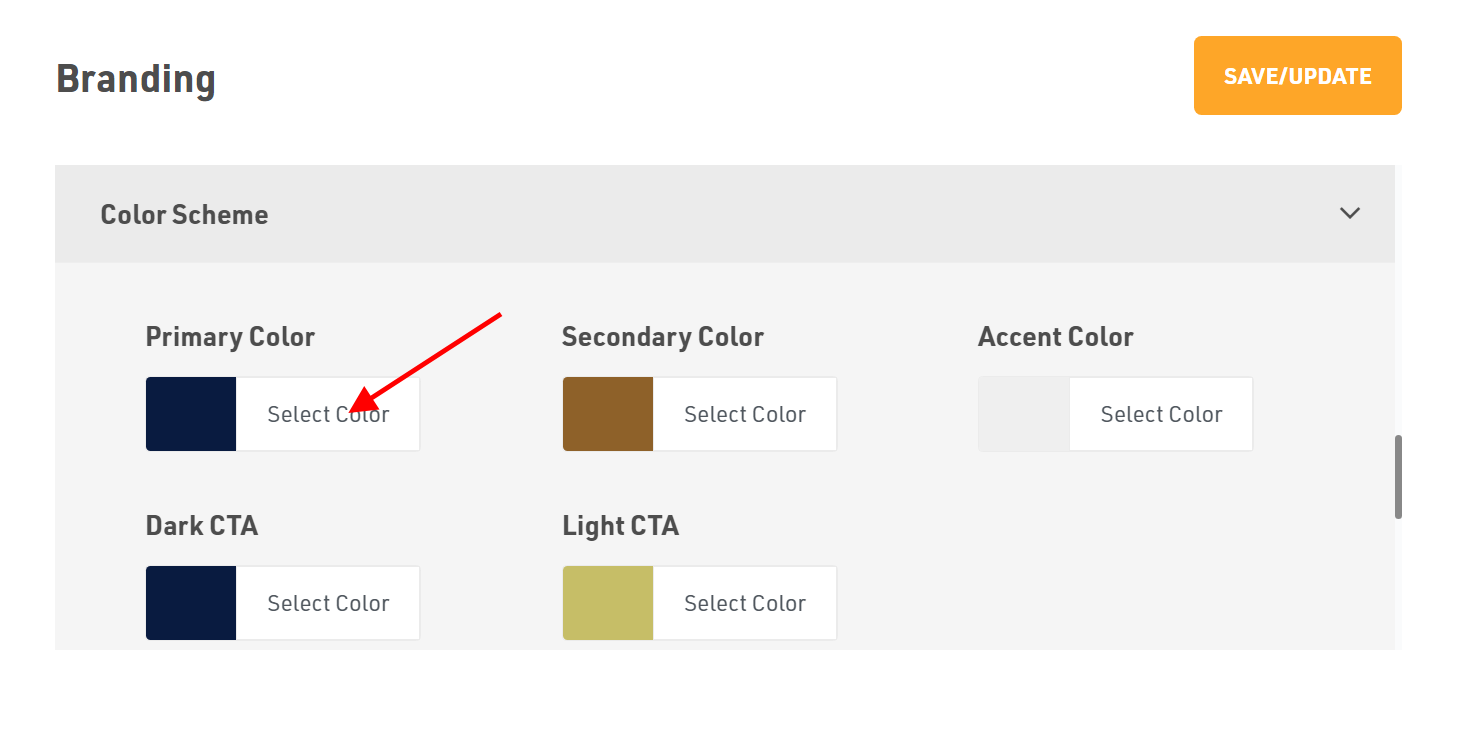
- Click on any of the color types, for example "Primary Color" and pick the color of your choice from the color picker or you can add the HEX value of your brand color.
Types of colors and their usage
On the Color Scheme screen, you will see options to add 9 types of colors. We will explain how they work:
- Primary color - The primary color will be the dominant color on the site. It can be used as the background color on the website or to highlight important content.
- Secondary color - This will be used in subheadings and other areas on the site. A secondary color is usually used to highlight content on a website by overlapping it on either the primary white color or any other color.
- Accent Color - This color is used more sparingly throughout the site. Usually, this color is a lighter tone, like a neutral grey or a lighter hue like the pastel shade.
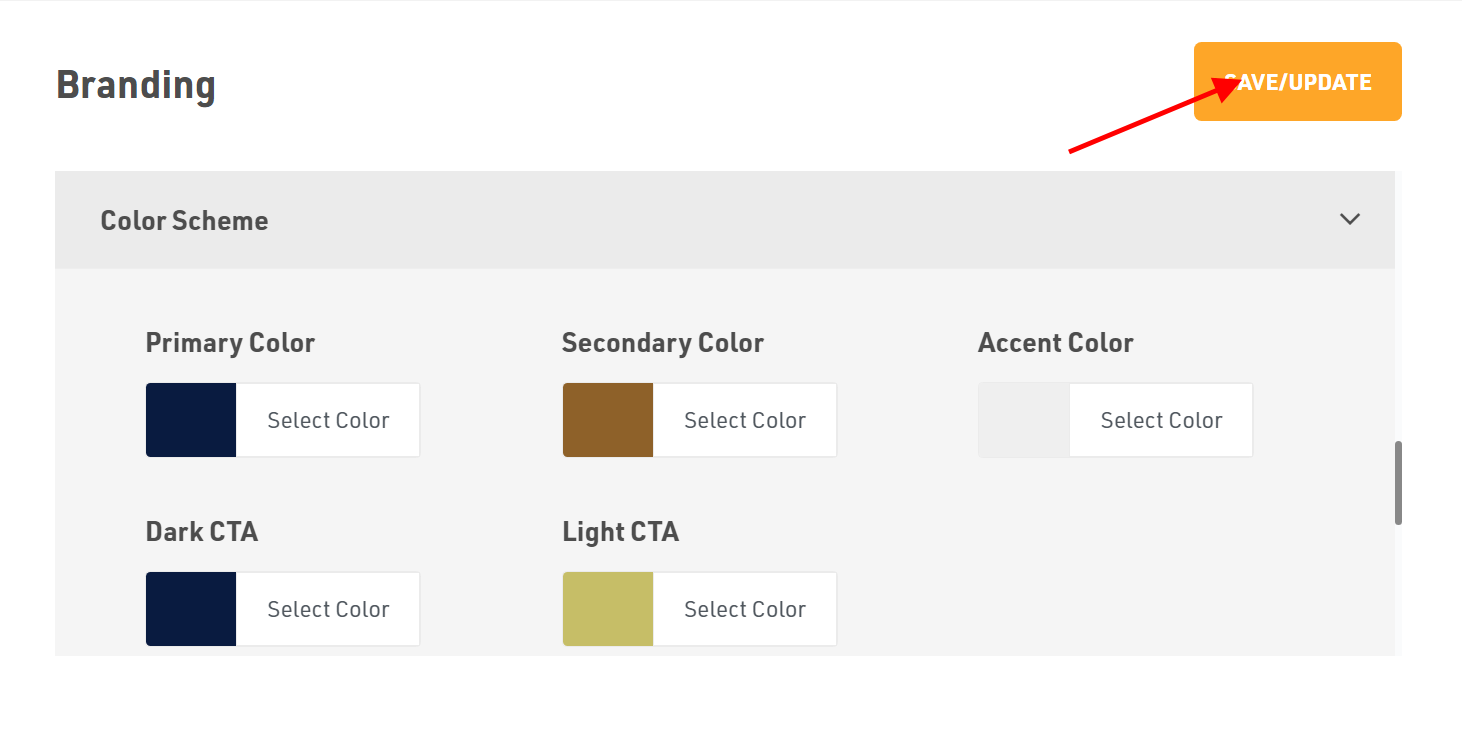
Dont forget to Save/Update
Make sure to click the Save/Update button on top right corner once you finish everything.
Was this article helpful?
Thanks for the feedback.