
How to change the text of the existing menu item or add a new menu item?
Overview
You will see some menu items already added to your newly created multifamily website. These menu items come as a default list of pages. You can edit the text of these menu items or add a new menu item. We recommend keeping it to a maximum of 8 menu items. When the header doesnt have much space to accommodate all the menu items our system automatically triggers a mobile menu on the desktop as well.
Lets see how to add or edit the text of existing menu items:
- Please login to the dashboard of your property website at manage.beswifty.com.
- In the left sidebar navigate to Settings > Menus.
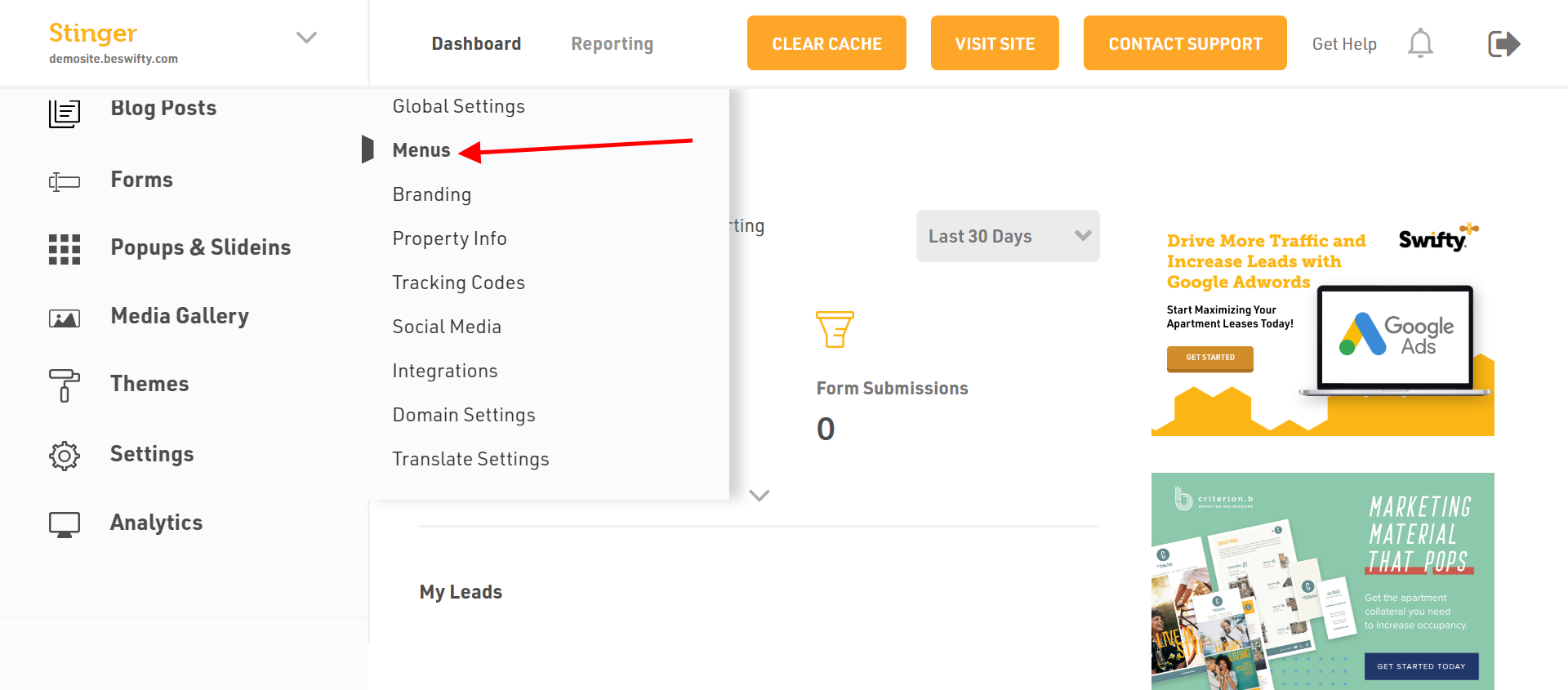
- On the menus screen, you will see two tabs:
- Primary Menu - Its the main menu that appears in the header of your multifamily website.
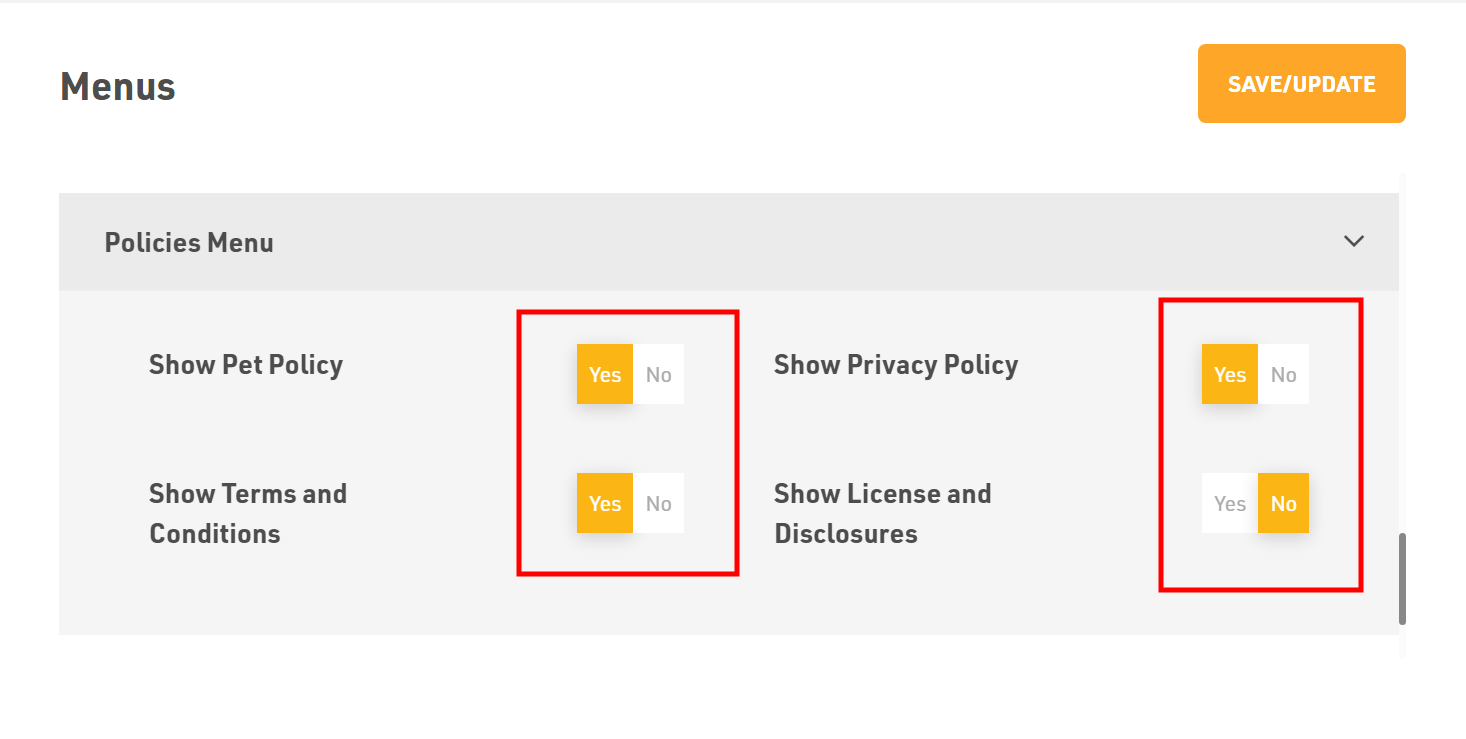
- Policies Menu - This menu is displayed in the footer of your website. You can show or hide the menu items of the policies menu.
How to add or edit Primary menu items
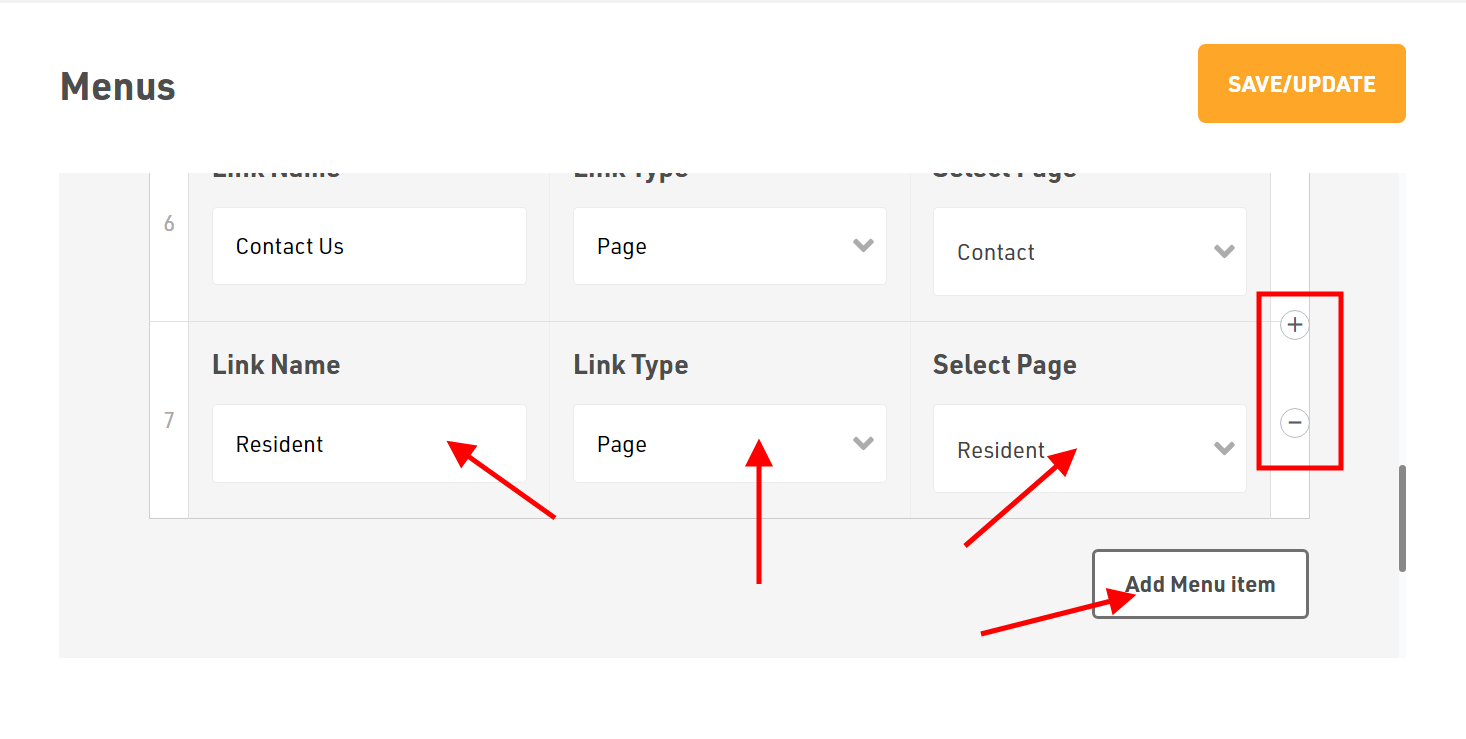
- You can change the existing Link name, Link Type and Select Page option. Simply click on the tab and type the text or select from the drop-down.
- Here Link type can be an internal page on the website, a blog, an anchor link, or an external link.
- You can even add or remove the menus using the (+) or (-) sign between two rows.
- The Add Menu Item at the bottom enables you to add more items to the menu.
How to show or hide Policies Menu
Here you can choose whether you want to show or hide the policies and conditions with one click on the Yes/No button.
Dont forget to Save/Update
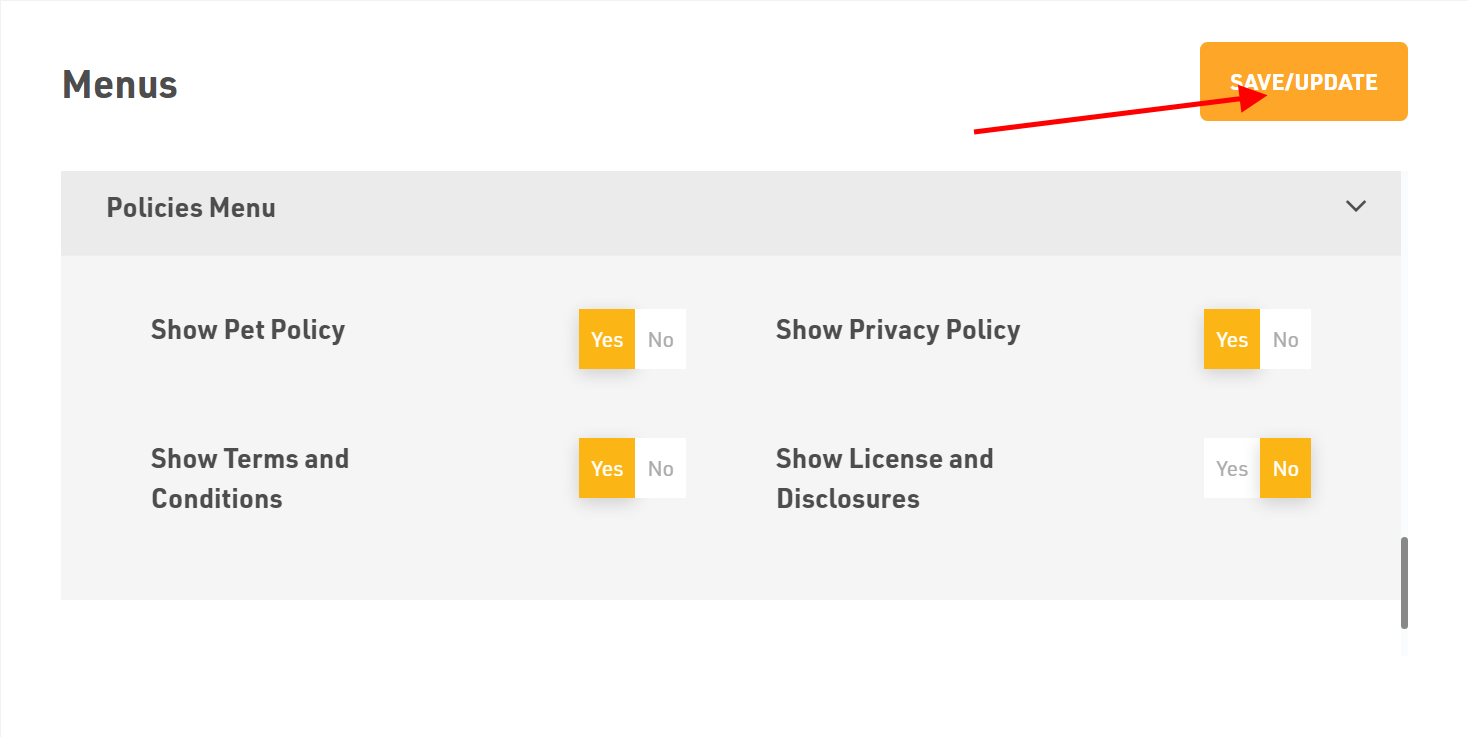
Make sure to click the Save/Update button on top right corner once you finish.
Was this article helpful?
Thanks for the feedback.