
How to Add or Edit Resident in Your Homepage ?
- Login to the dashboard of your property website at manage.beswifty.com.
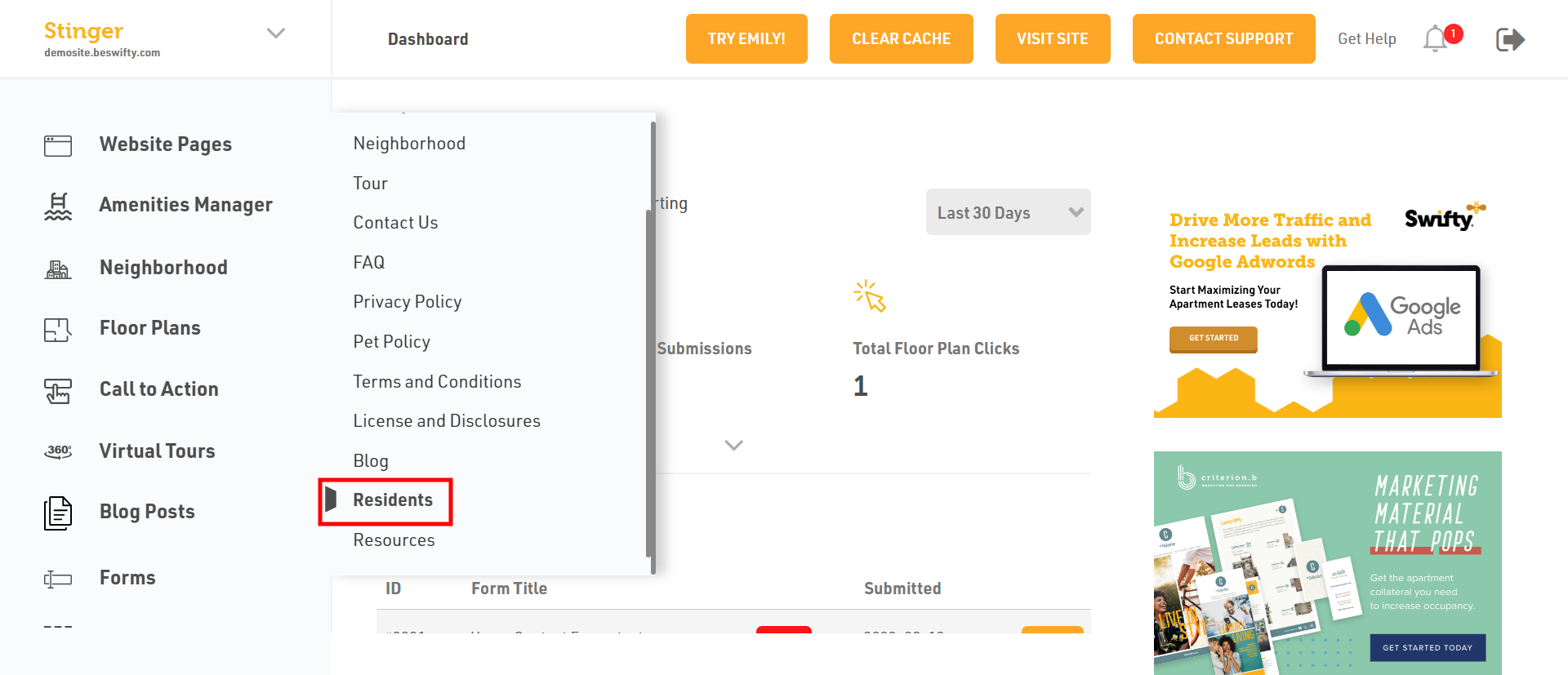
- In the left sidebar, navigate to Website Pages> Resident Page
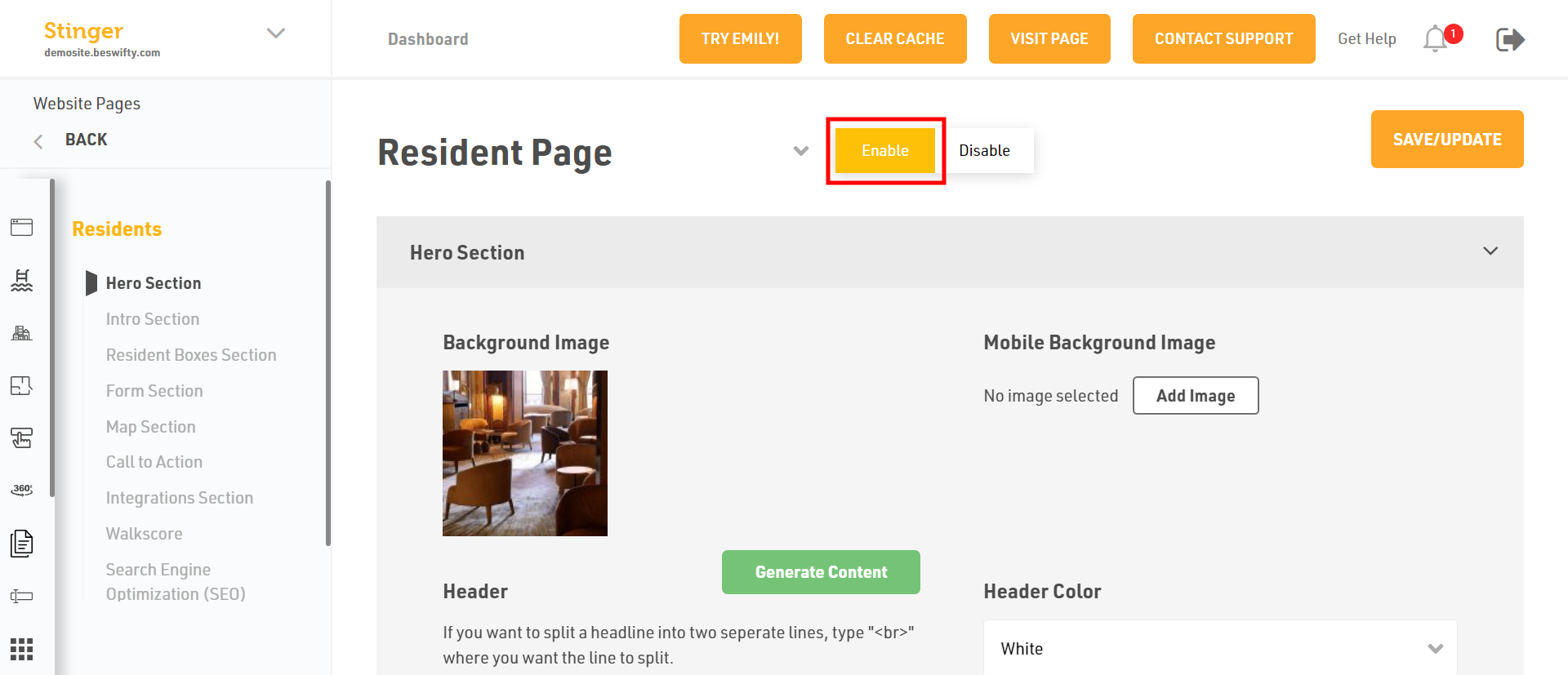
- Toggle Enable to ensure the page is visible in the Site Map.
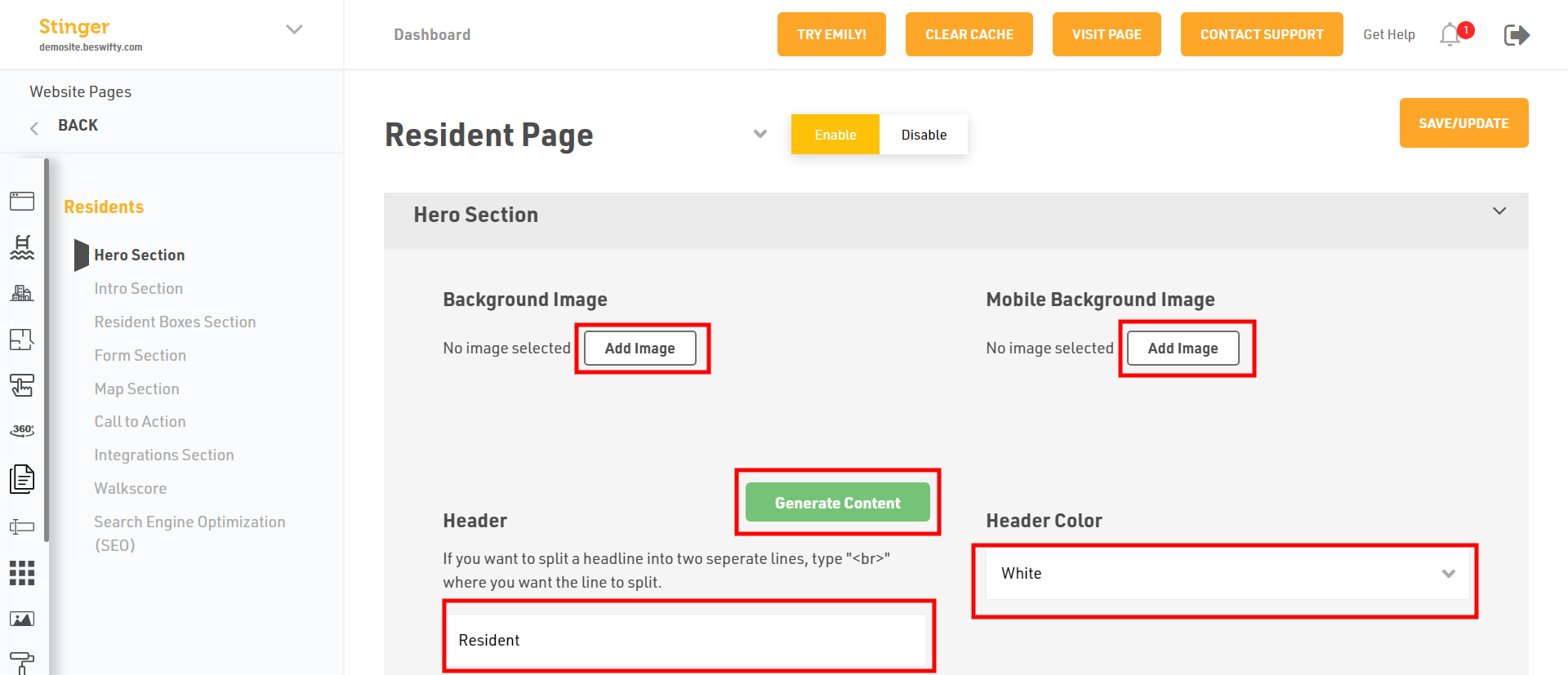
- To add visuals in the Hero Section, click Add Image to upload the desired Background image or Mobile Background image from your device
- Craft a catchy header by typing into the Header field. For a shortcut, use our Generate Content AI feature to provide the best one for you.
- Finally, select your Header Colour from the drop-down menu.
How to Add an Intro Section?
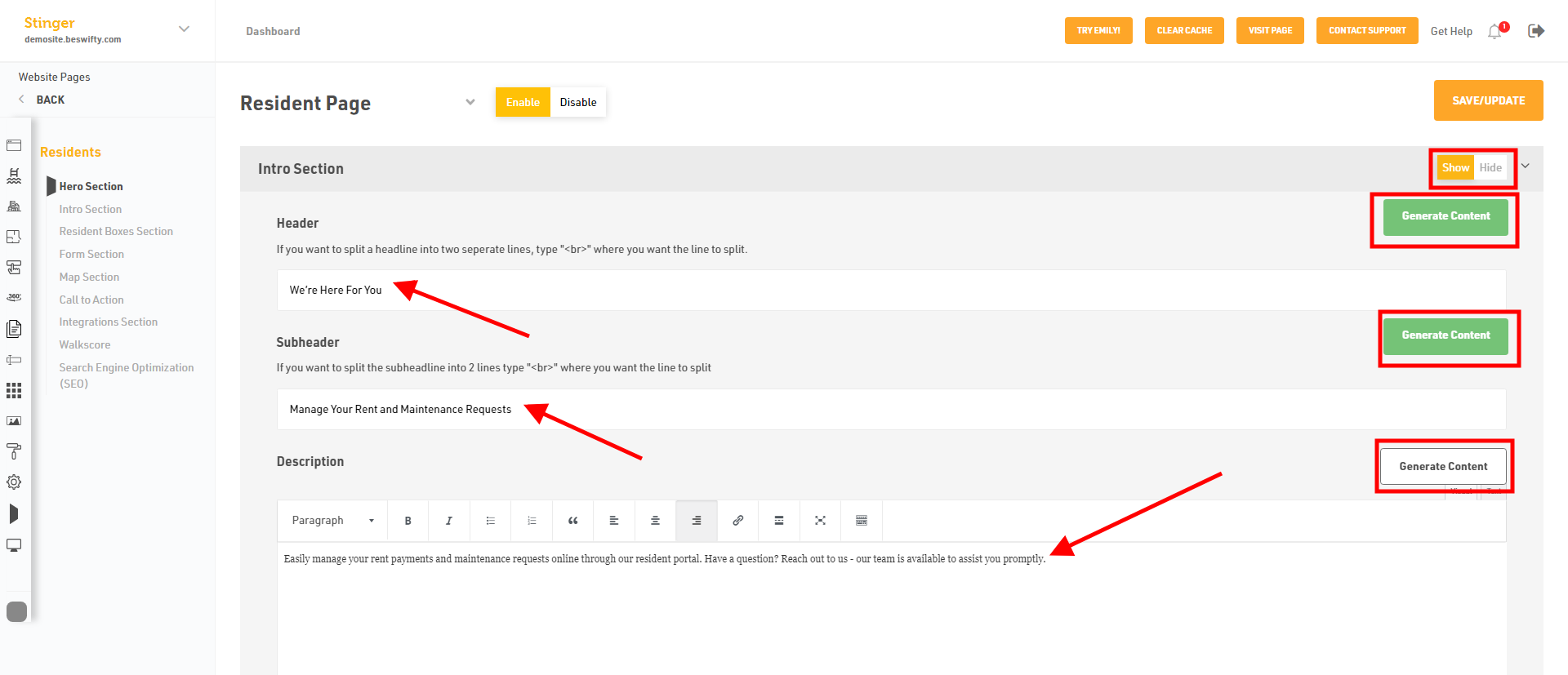
- Decide if you want this section to be visible on your homepage by selecting Yes or No.
- Write your Header, Sub-header and Description. Alternatively, you can select our Generate Content AI feature to generate the content for you automatically.
How to Add Resident Boxes Section?
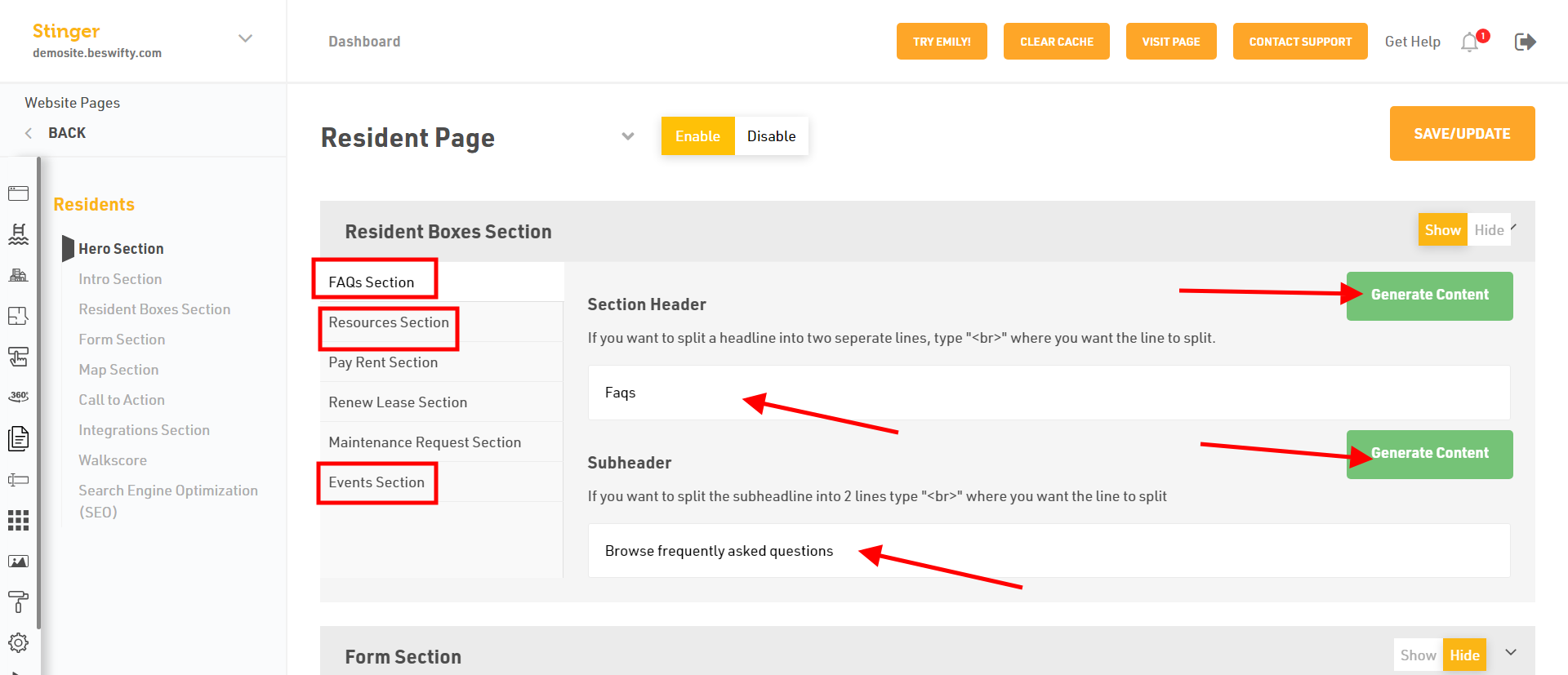
- In, Resident Boxes Section you have FAQs Section, Resources Section or Events Section Craft a catchy Header or Subheader by typing into the Header or Subheader field. For a shortcut, use our Generate Content AI feature to provide the best one for you.
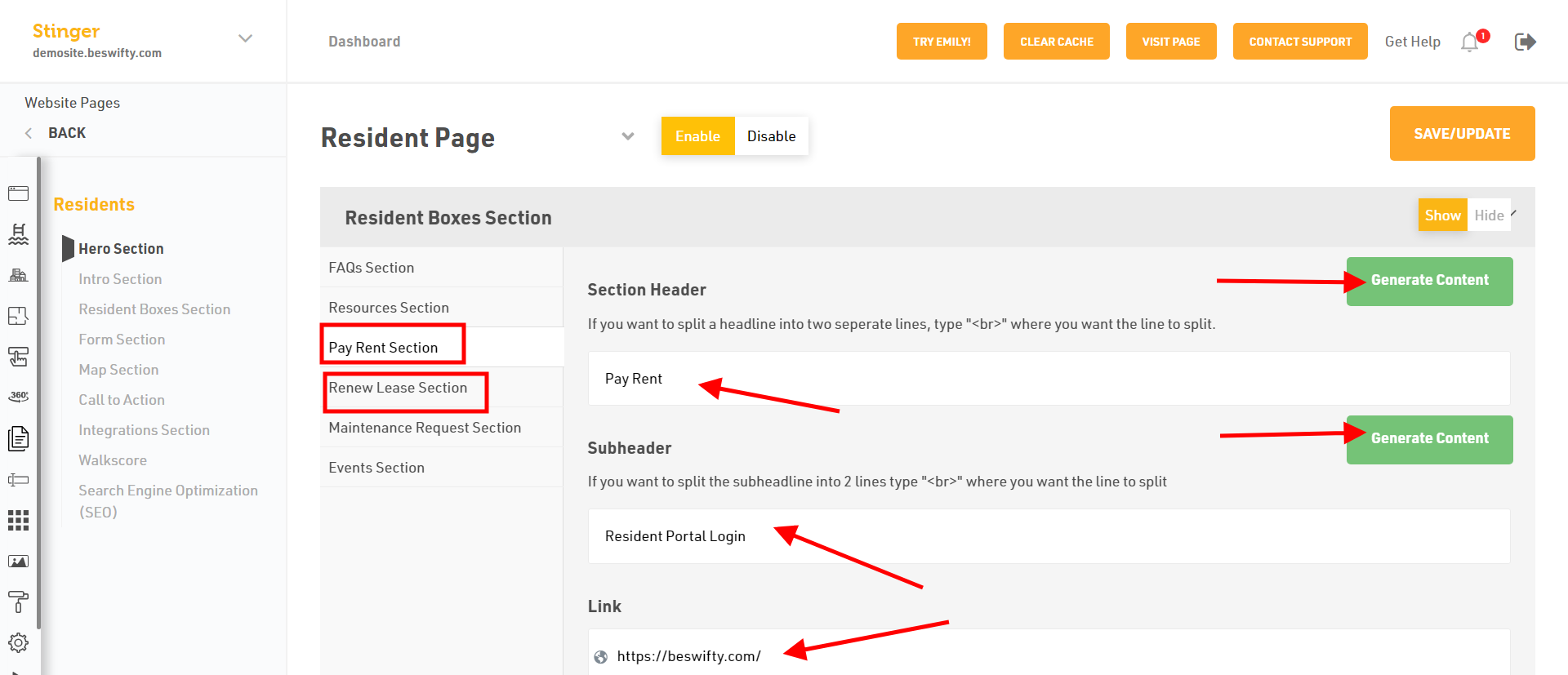
- Or, Pay Rent Section, Renew Lease Section craft a catchy Header or Subheader by typing into the Header or Subheader field . Or paste the link of your Payment. For a shortcut, use our Generate Content AI feature to provide the best one for you.
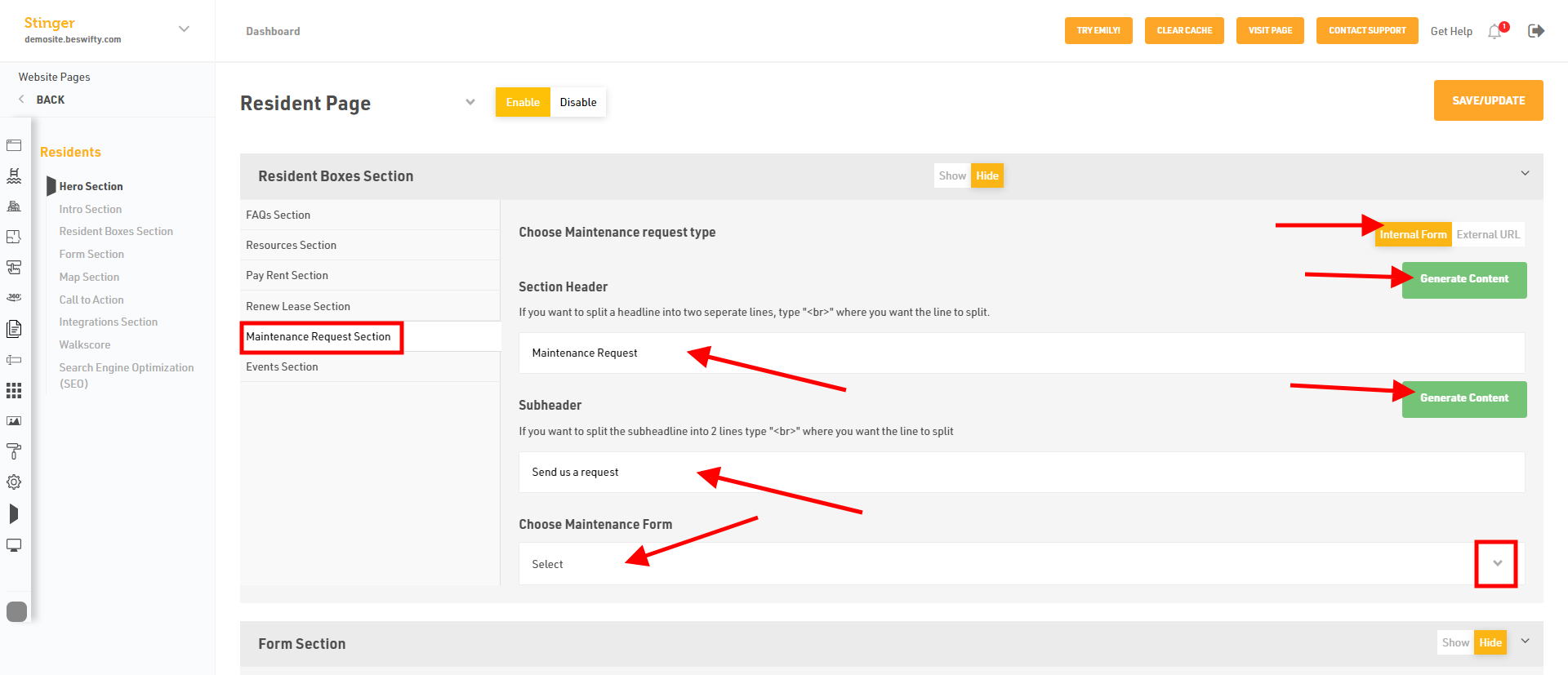
- In, Maintenance Request section catchy Header or Subheader by typing into the Header or Subheader field. If you have the Internal Form then choose the maintenance form from dropdown. For a shortcut, use our Generate Content AI feature to provide the best one for you.
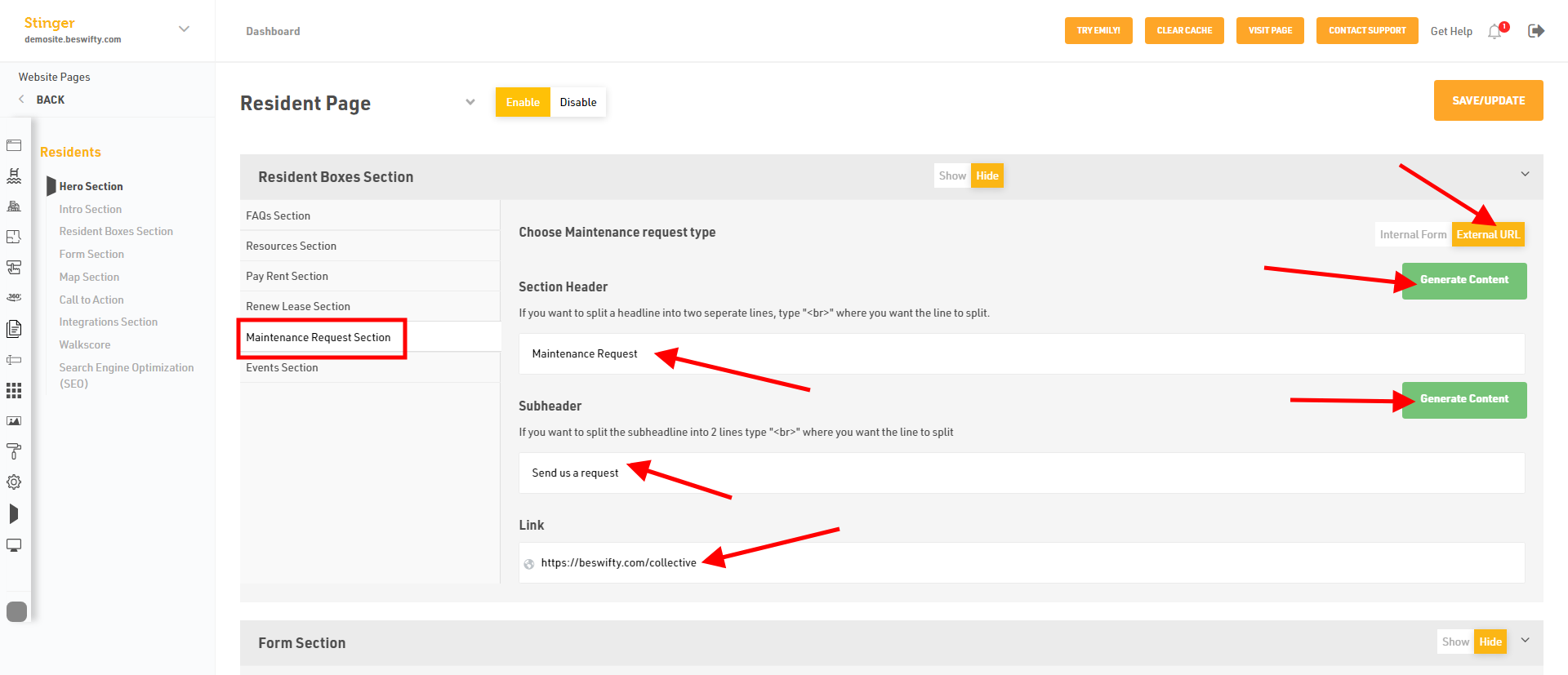
- In, Maintenance Request section catchy Header or Subheader by typing into the Header or Subheader field. For a shortcut, use our Generate Content AI feature to provide the best one for you. If you have the External URL Link paste it.
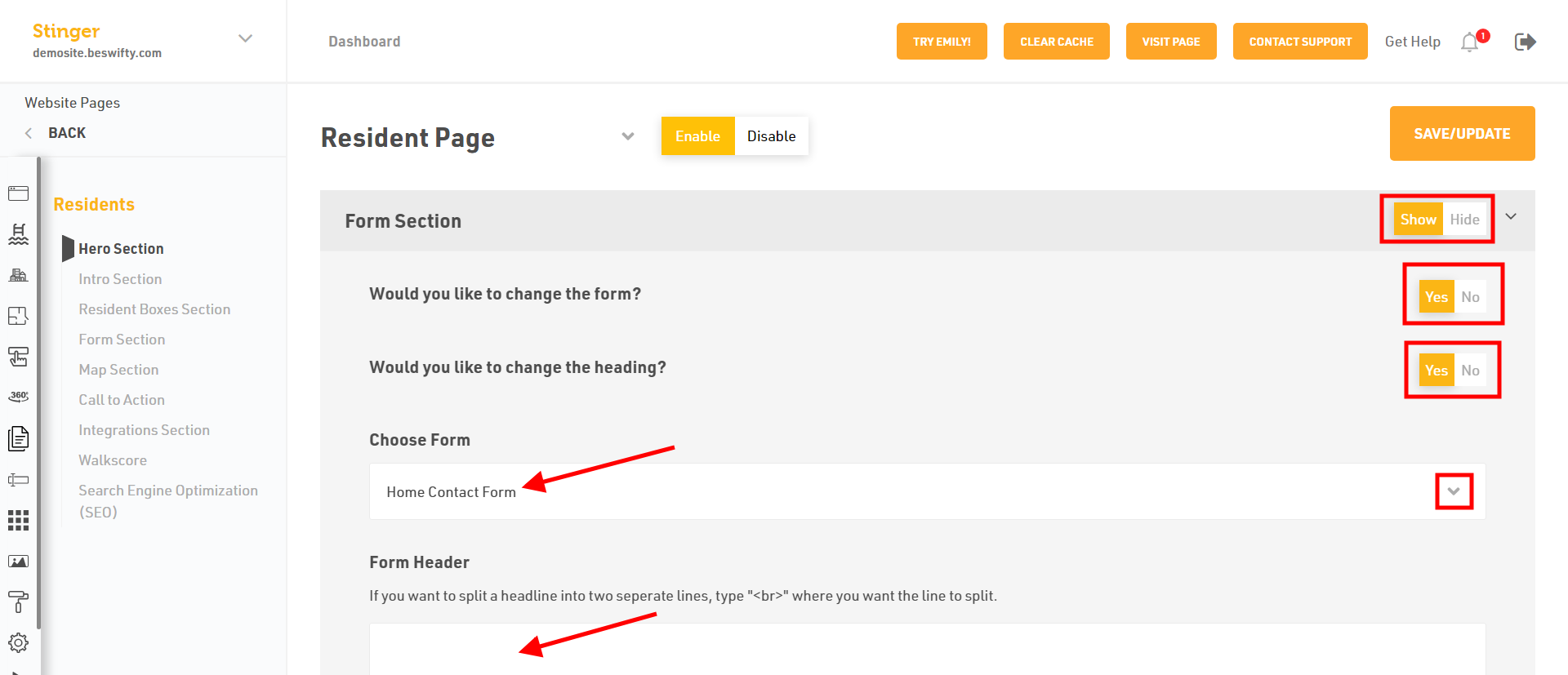
How to Add Form Section?
- Decide if you want this section to be visible on your homepage by selecting either Show or Hide.
- Select Yes or No if you want to modify the current form. If you selected Yes, pick the desired form from the dropdown menu.
- To alter the form's Heading, select Yes, then input your preferred Form Header.
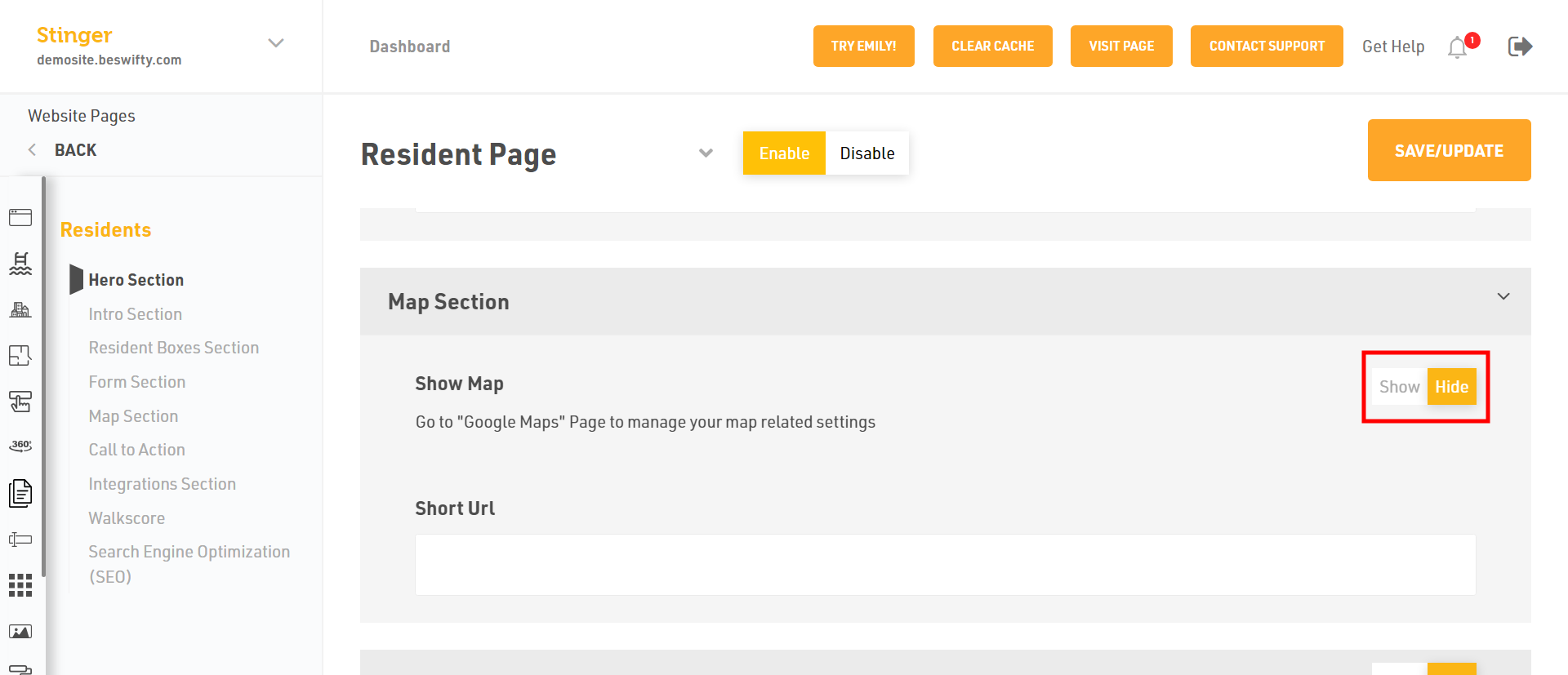
How to Add a Map Section?
Decide if you want this section to be visible on your homepage by selecting either Show or Hide.
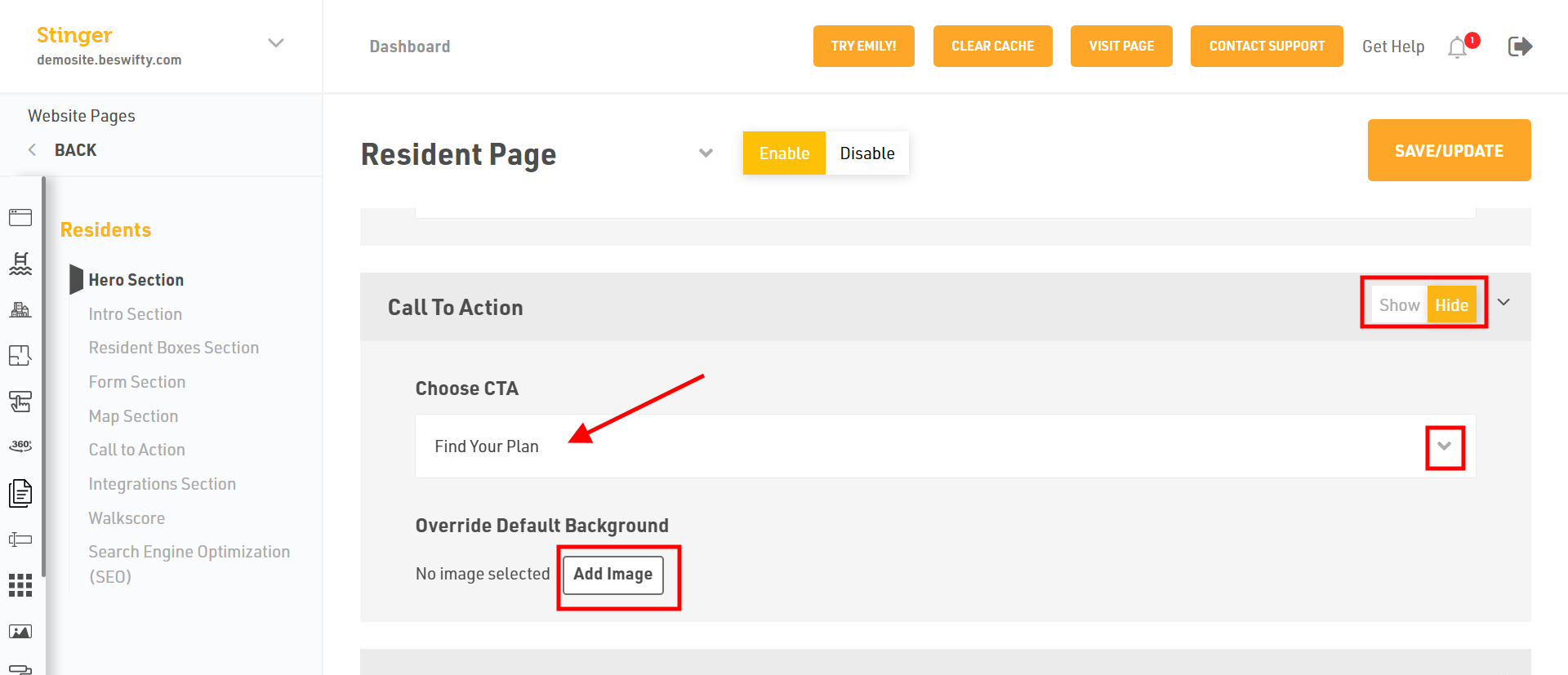
How to Add a CTA Section?
- Decide if you want this section to be visible on your homepage by selecting either Show or Hide.
- Select CTA from the drop-down menu.
- If you'd like to Override Default Background, click Add Image, then upload your preferred file from your device.
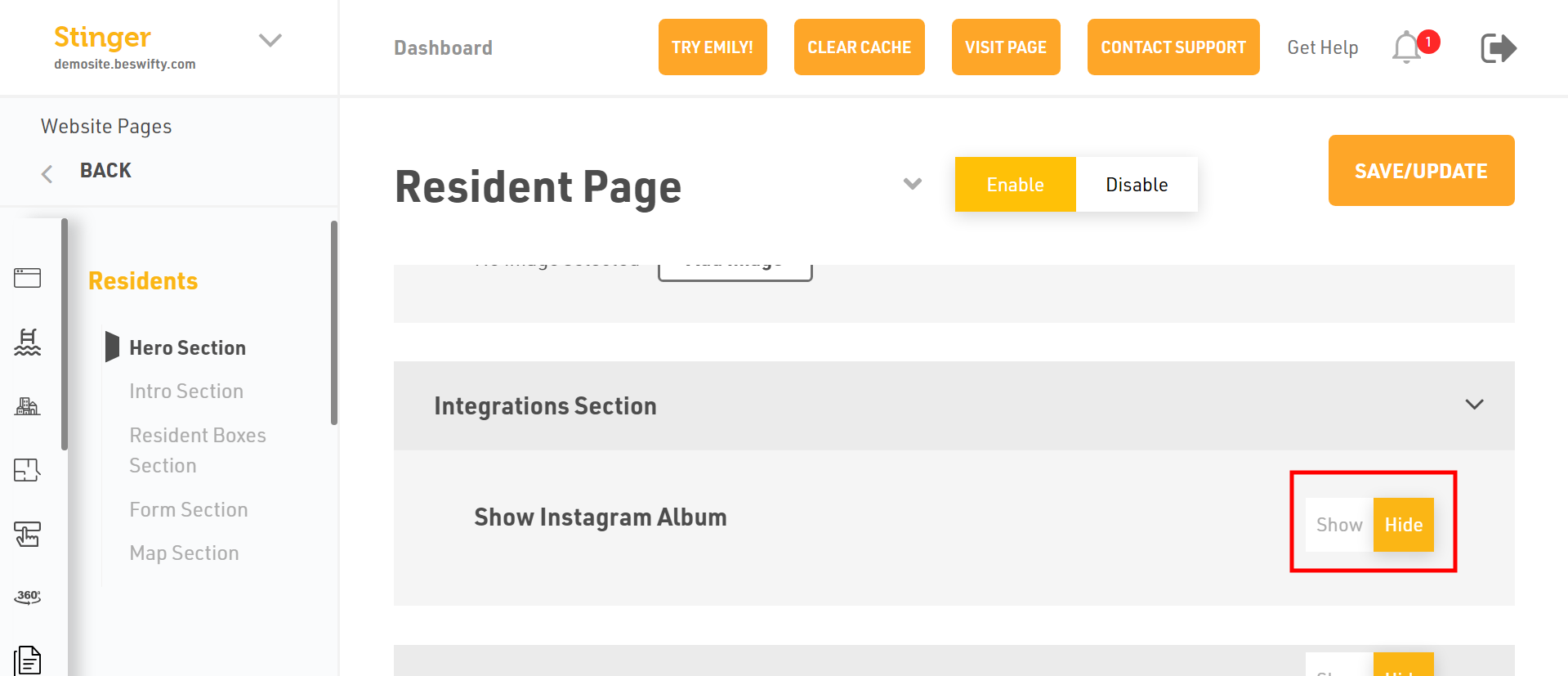
How to Add an Integrations Section?
Select whether to Show or Hide the Instagram Album and Engrain Sight Map on the front-end of your website.
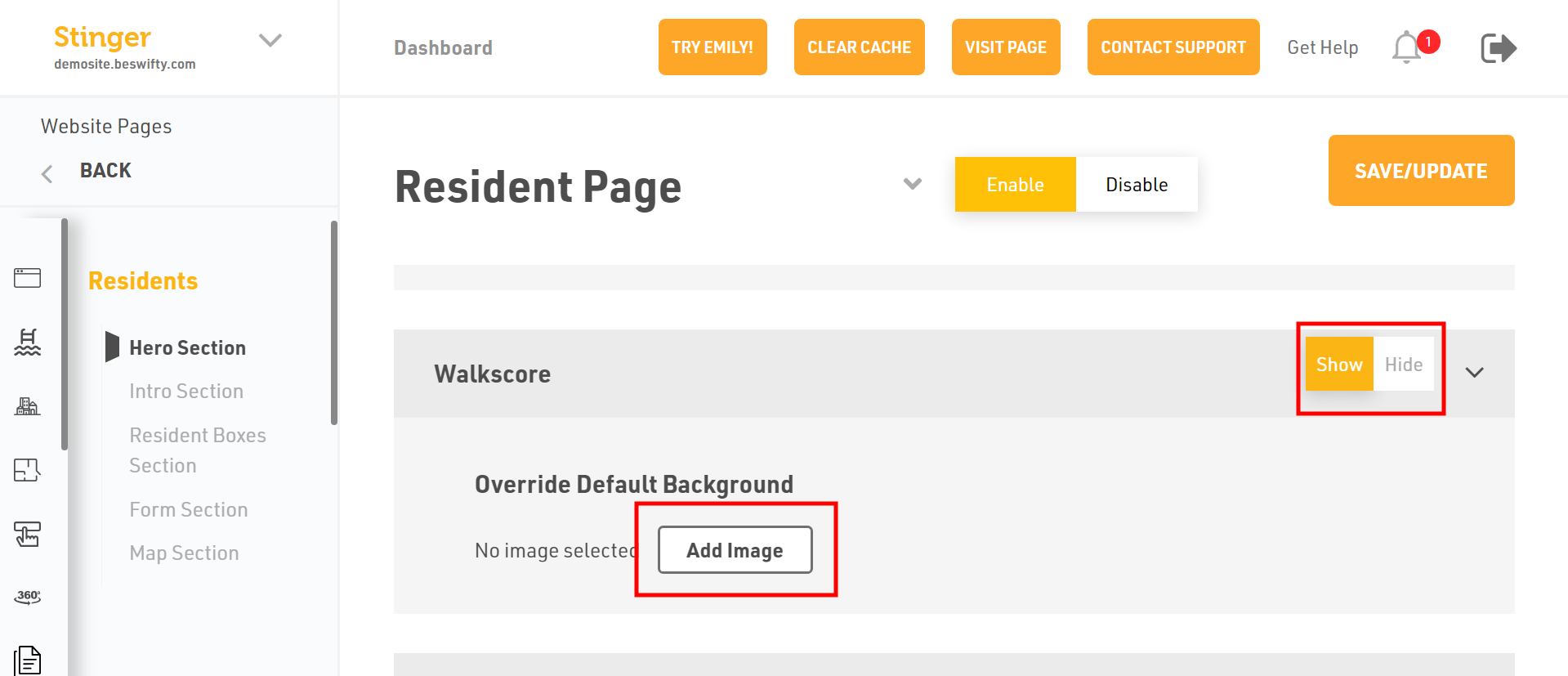
How to Add the Walkscore section?
- Decide if you want this section to be visible on your homepage by selecting either Show or Hide.
- If you'd like to Override Default Background, click Add Image, then upload your preferred file from your device.
How to Add the Search Engine Optimization (SEO) Section?
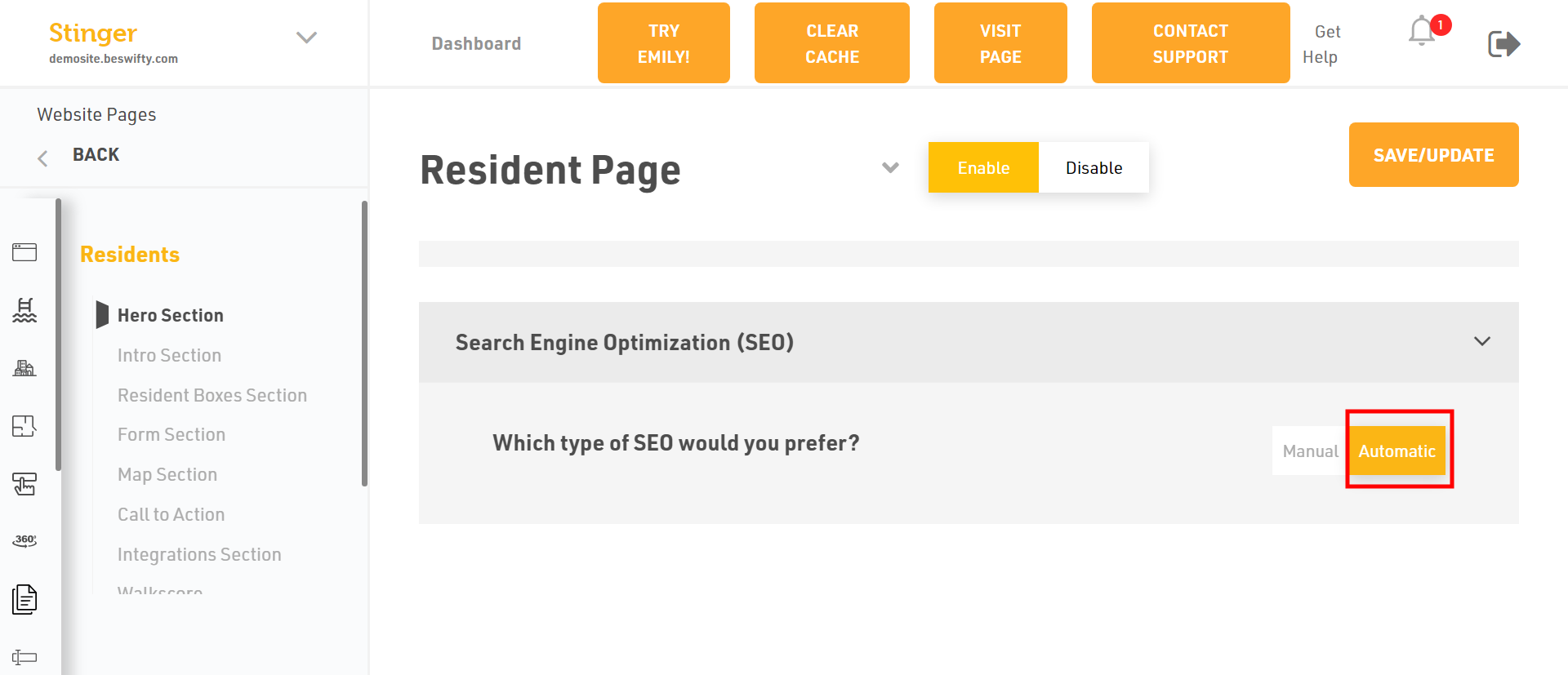
- You have two Type of Search Engine Optimization (SEO) Manual or Automatic. If you want to select the Automatic just click on.
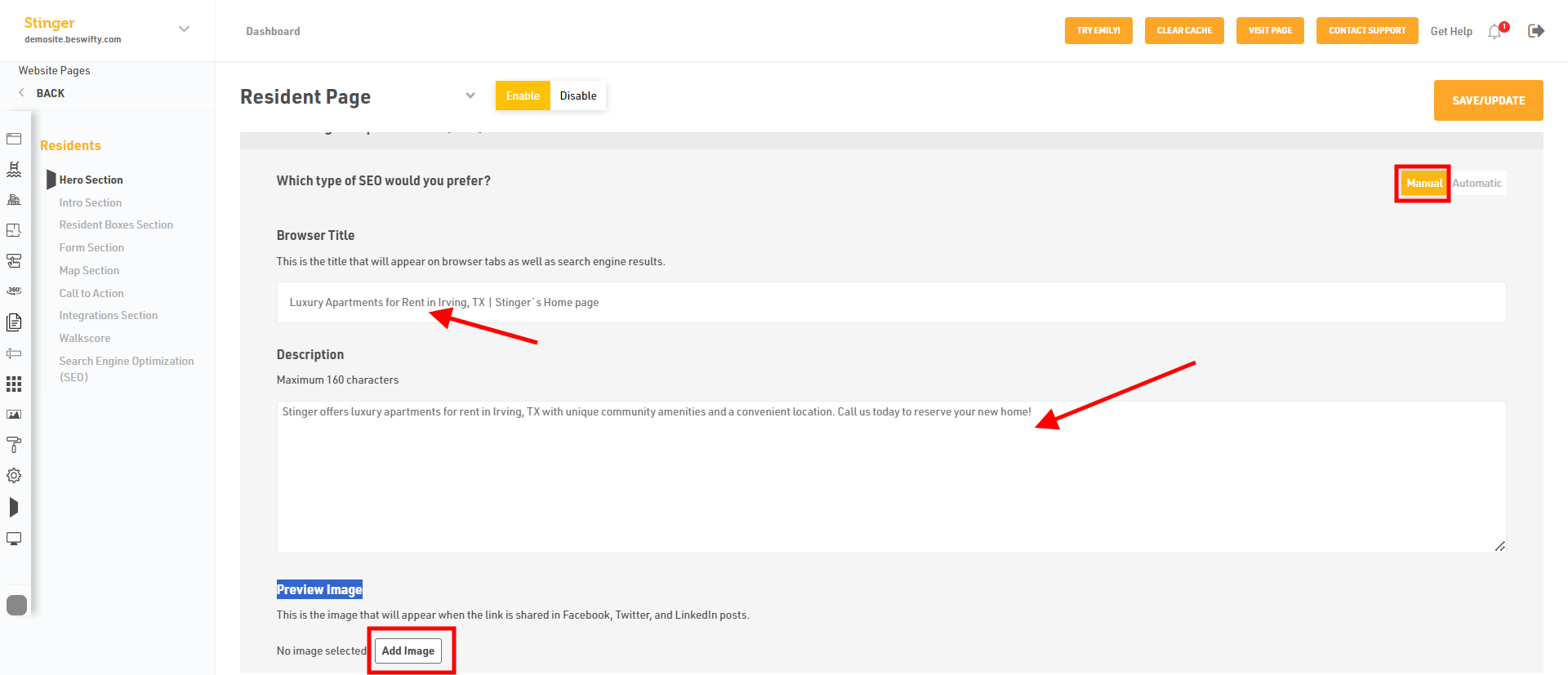
- Or select Manual to add the Browser Title.
- Then, Type the description Maximum 160 characters an Add Preview Image.
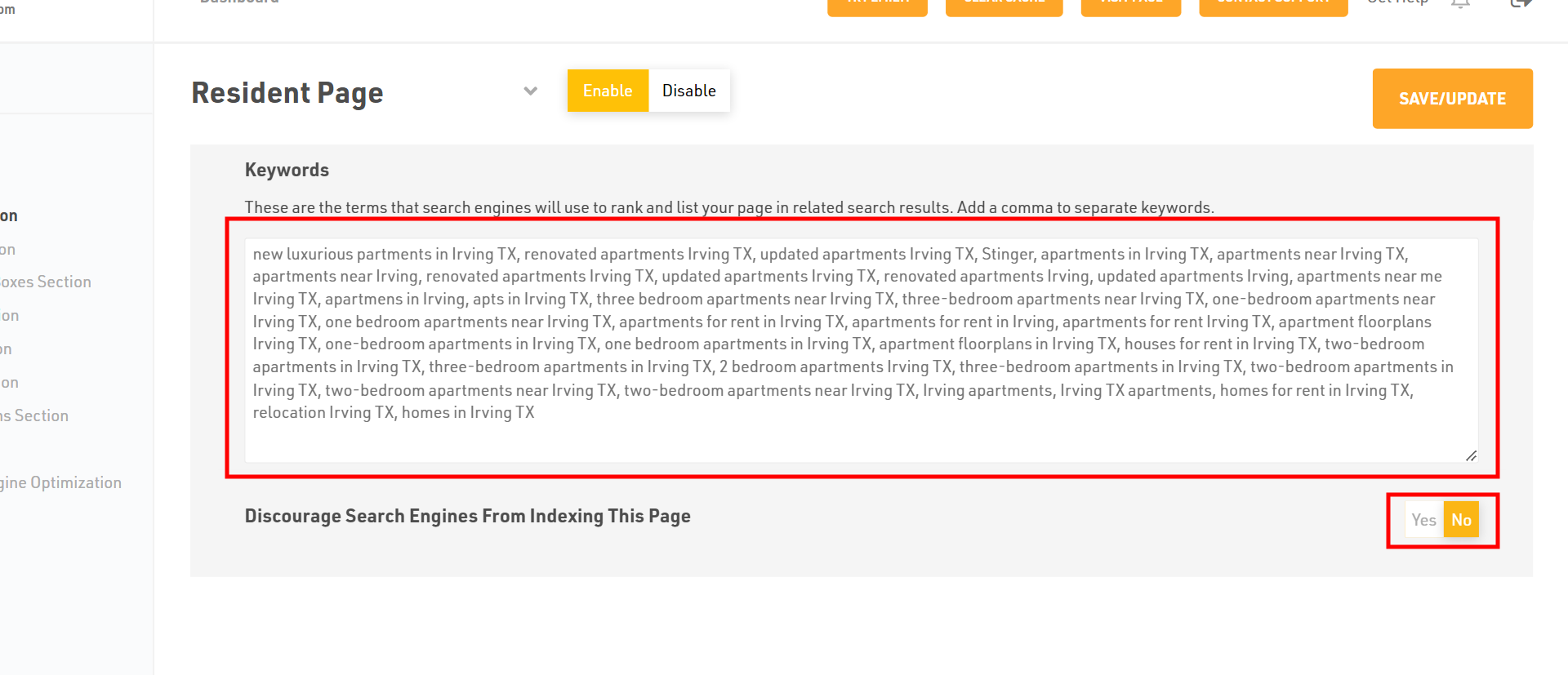
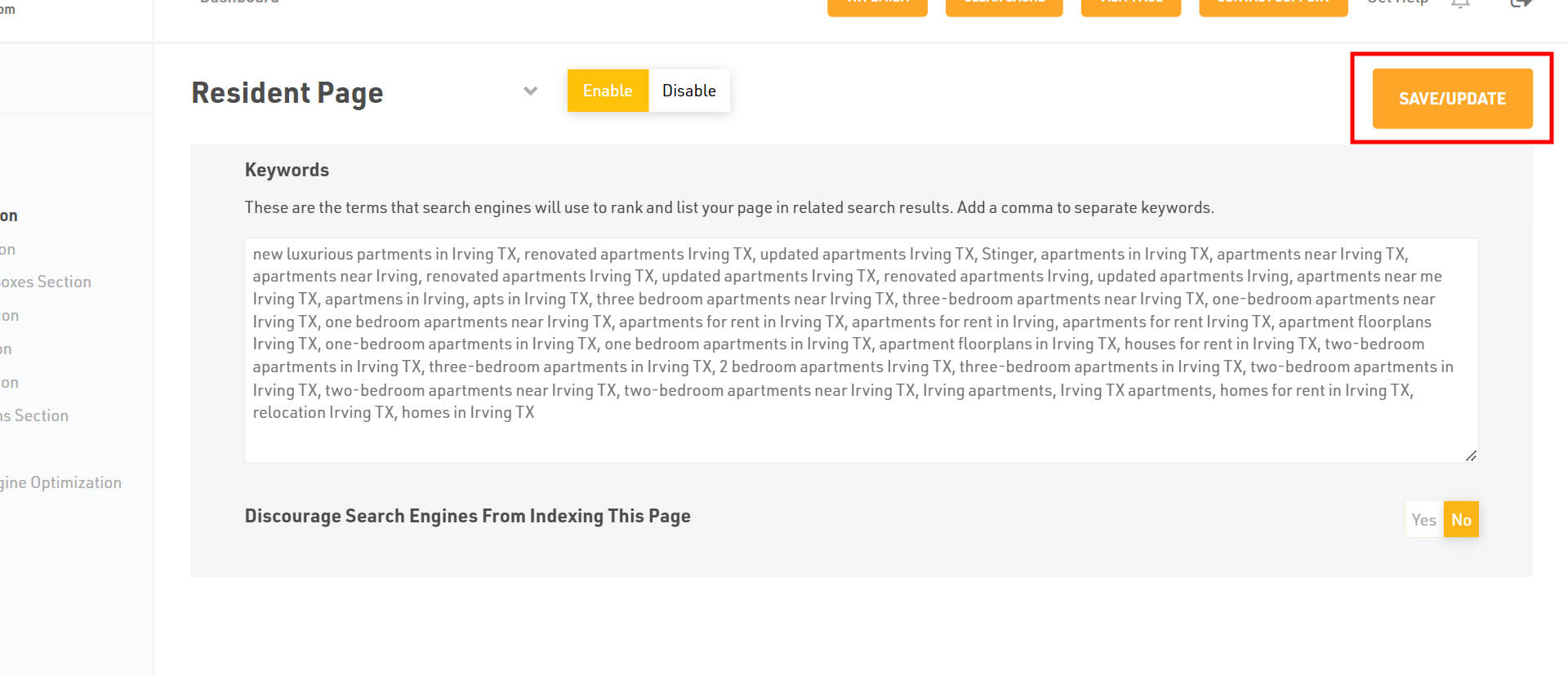
- You can Add the Keywords. Discourage Search Engines From Indexing This Page, Click on YES or NO
Don't forget to Save/Update
Make sure to click the Save/Update button in the top right corner once finished.
Was this article helpful?
Thanks for the feedback.