
How to add, change or manage social media links?
If you wish to enhance your brand awareness and customer reach in the market, then do add Social Media Links to your Swifty multi-family website. This will help generate followers and build a network. These Social Media links are displayed in the Menu and even on the website footer in the form of social media icons, which can be hyperlinked at the backend. Lets take a look at the steps:
- Login to the dashboard of your property website at manage.beswifty.com.
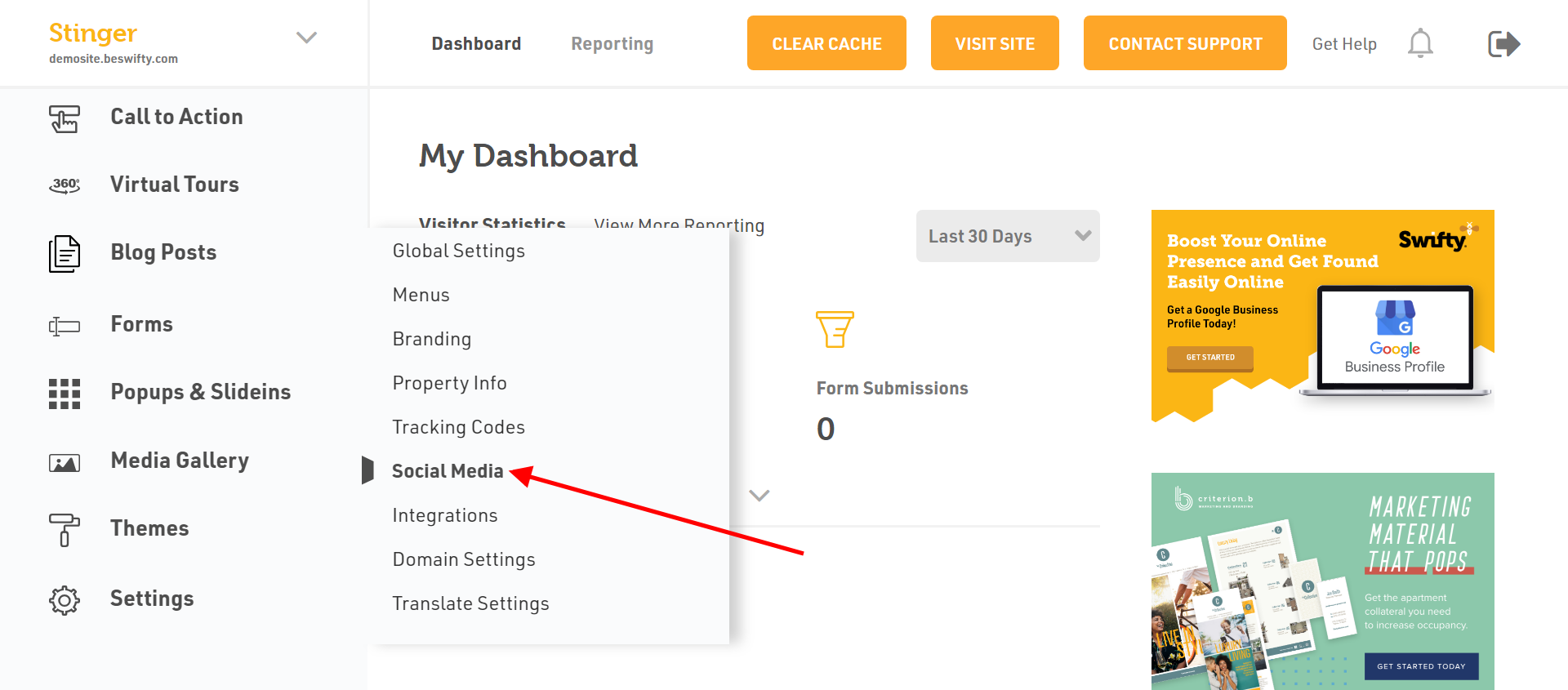
- In the left sidebar navigate to Settings > Social Media.
- Under the Social Links, youll come across the following media names as sub-headers:
Facebook | Twitter | Linkedin | Instagram | Youtube
Each has an empty field where you can enter their respective links.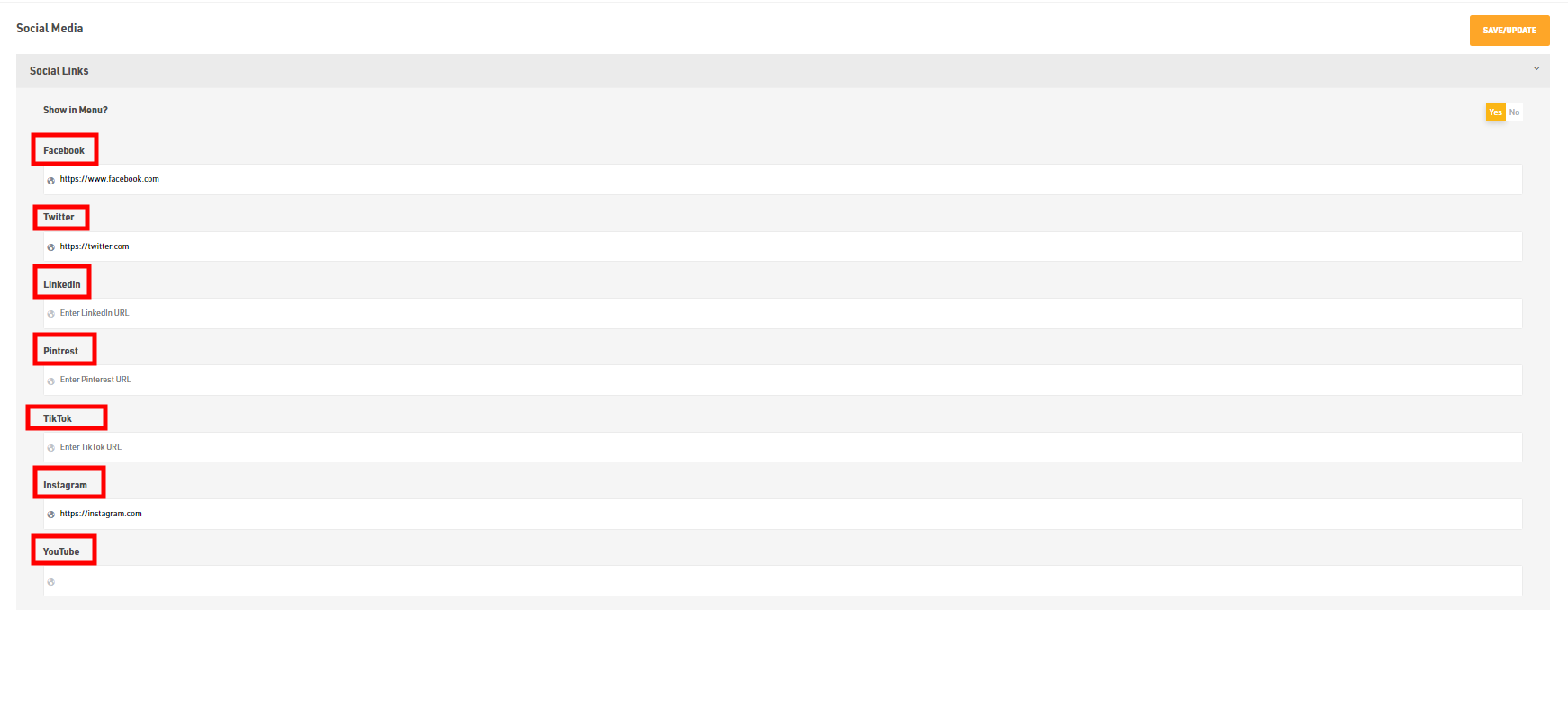
- If you dont have a Facebook page or a channel on Youtube, or simply any of the above media links, then simply keep their respective fields vacant. So that it wont be shown under the website menu.
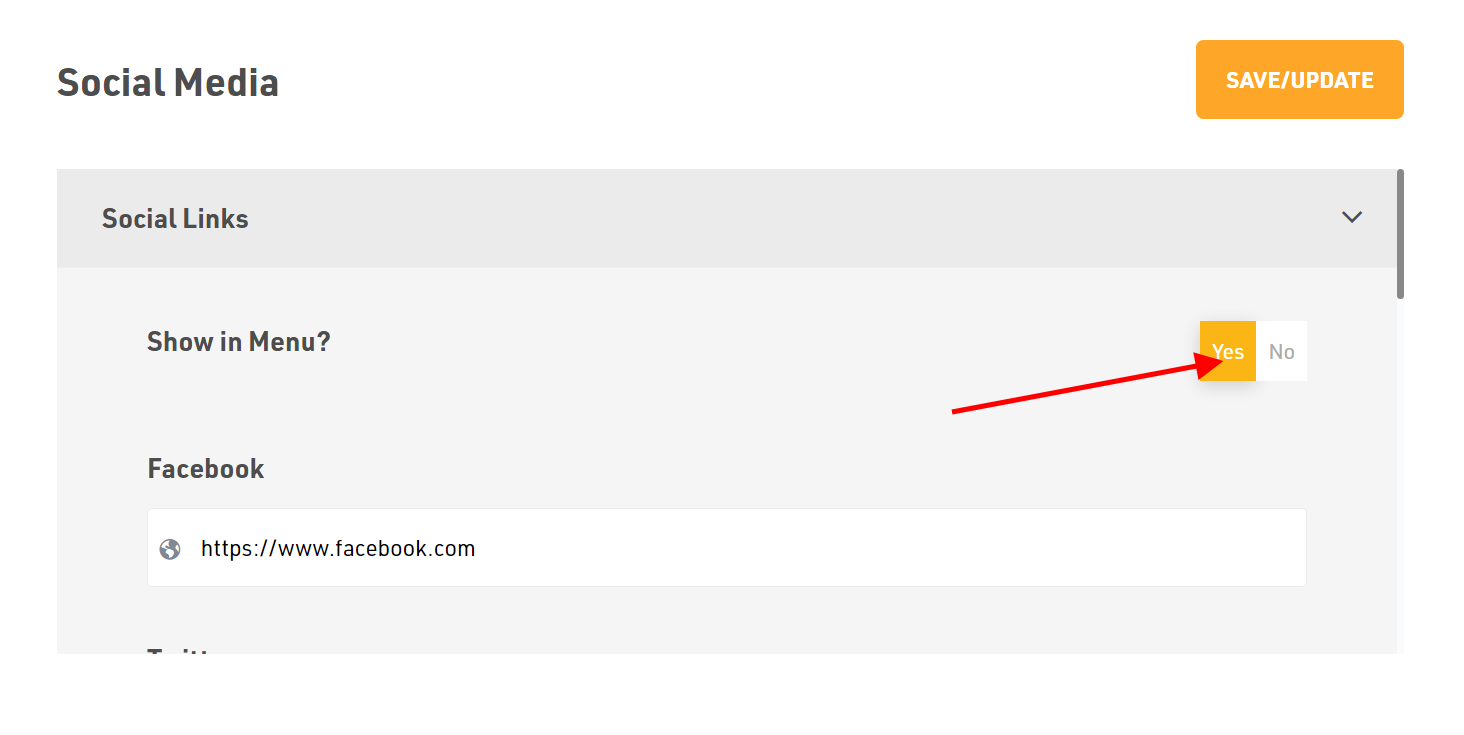
- Suppose you have none of the above media links, you can even choose to hide the media icons visibility on the website menu by selecting NO to show them in Menu.
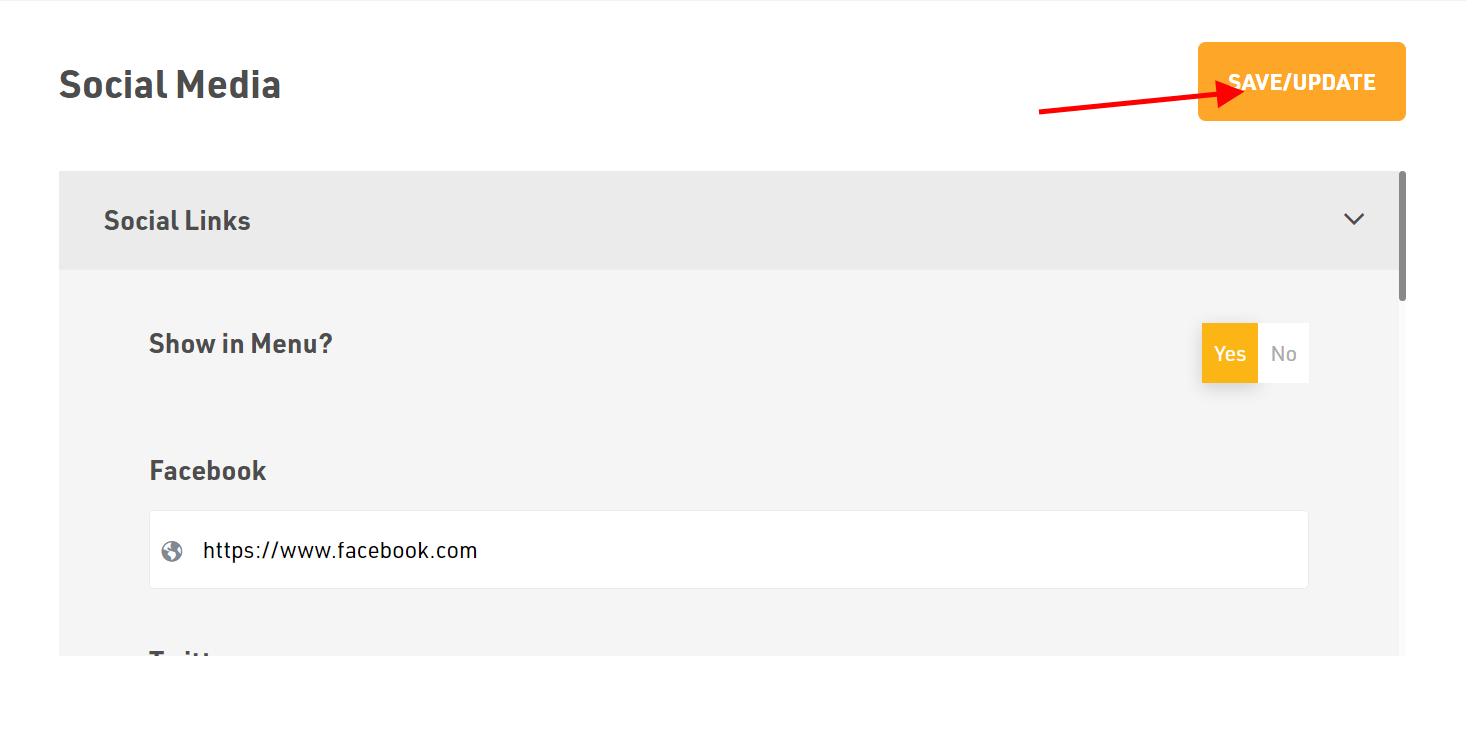
Dont forget to Save/Update
Make sure to click the Save/Update button on top right corner once you finish everything.
Was this article helpful?
Thanks for the feedback.